In praise of human beings
This book was written by a human (hello, I’m
Arialdo), not AI, because I
respect your intelligence.
It is available in HTML
and PDF.
It aims to be:
- Lean: because your time is precious.
- Practical: because less talk, more action is 👌
- Incremental: because you want to start using
jjfrom day 0. - No hand-holding: because discovering is more fun than being told.
- Unorthodox: because Jujutsu is extravagant, and ordinary tutorials are boring.
It’s free1 (as in beer) because I’m merely giving back what I was given. And because I love beer.
If you’d like to pay for it, please donate to a charity of your choice.
I’m no authority, just a fellow student. I wrote this the way I wish someone had explained Jujutsu to me.
It’s long, but it’s mostly commands and terminal output. You’ll be fine.
English isn’t my native language. If you want to help, PRs are welcome!
-
CC BY-SA 4.0 - https://creativecommons.org/licenses/by-sa/4.0/deed.en ↩
What’s This Book About?
In your affair with Git, do you recognize yourself here?
- “Detached HEAD” gives you anxiety.
git reset --soft,--mixed, and--hardblur together.- You rebase with crossed fingers, or you don’t dare.
- The reflog remains an unexplored land.
- When you make a mess, you don’t know how to get back.
Or maybe you’ve mastered Git and are intrigued by extravagant ideas like:
- Working on multiple branches simultaneously.
- Rebasing interactively as you type.
- Sending changes to past and future commits.
Whether Git scares you, or you’ve hit its ceiling and crave more power, Jujutsu might forever change your relationship with version control.
What’s Jujutsu?
Jujutsu is an open source Version Control System, like Git.
Git is amazing, but makes its model your problem. Jujutsu offers a ridiculously simple model you’ll pick up in a breeze, yet unlocks workflows you never knew were possible.
Best of all, it’s 100% Git-compatible. Mix git and jj commands
freely in the same project; your colleagues won’t even notice.
There’s no need to switch. Keep your current faith: no conversion is required.
Is This Book For You?
This book targets two radically different readers.
The Git Wizards, who play with reflog blindfolded and who crave more power. They will find it in Jujutsu.
The Scared Beginners, who freeze at conflicts and dread rebasing. They’ll finally gain autonomy with Jujutsu.
This contradiction stems from Jujutsu’s surprising nature: impossibly simple yet spectacularly powerful. It’s Dr. Jekyll and Mr. Hyde collaborating amiably in the same lab. A design miracle.
I hope to inspire experts to invent reckless new workflows, and give the frightened ones the joy of versioning on their own, with confidence.
Ultimately, this book, like Jujutsu, isn’t for everyone. It’s for Wizards and Beginners sharing the curiosity and bravery to step outside the box.
Conventions
Important
Panels like this one give you the gist of a chapter before you dive in.
echo Command snippets look like this:
jj new -m "Feel free to type them into your terminal"
Warning
I’ll occasionally throw in a quiz.
Can you guess what the panel below is for?
Tip
Right! It’s the answer!
In HTML, it’s collapsible. In the PDF, not peeking is on you ;)
Happy versioning!
Acknowledgments
I’m grateful to Ferdinando Santacroce for tricking me into writing this book, and to Paolo “Nusco” Perrotta for his outstanding suggestions.
Thanks to the reviewers Alberto Acerbis, Mickey Petersen, sm4llth1ng, Francesco Serra, Emanuele Firmani, Giuseppe Caferra and Luca Giovenzana.
The cover is an original hand-drawn illustration by Nanou1.
-
Nanou is a young local artist and does not have an online presence. ↩
At a Glance
This book assumes you have a working knowledge of Git. It will help you explore Jujutsu step by step, from the basics to more advanced topics.
Here’s a bird’s-eye view of the path ahead:
- Why Jujutsu exists and how it differs from Git.
- The happy path: committing, moving things around, and other everyday moves.
- Living with conflicts and resolving them.
- Remote branches and collaborating with others.
The very first, few pages are mostly conceptual and motivational: they
help you develop the mental model before you touch the keyboard.
The rest of the book is heavily hands-on, with a very few theoretical
interludes to explore the ideas behind the tool.
For the Impatietn
If you can’t wait to get your hands dirty, jump straight to the Quick Start in the Appendix for a little taste.
Why?
Many have little motivation to give Jujutsu a try because “Git works just fine”. I guess you’re here because you’re curious to see what Jujutsu brings to the table. So the next natural question is why Jujutsu exists and what problems it solves. Spoiler alert: it solves problems you didn’t know you had1.
3 Things to Improve
In interviews, I like to ask: if you had a magic wand, what three things would you change about your favorite tech? Here’s how I would answer about Git.
1. Git Has Too Many Building Blocks
The more building blocks, the harder it gets:
- Changes live in 3 distinct places: working copy, index, and repository.
- Consequently,
git restorecan be used with either--staged,--worktreeor both, getting to different results. - Same for
git resetwith--soft,--mixedand--hard. - Stashes live in a side-store with separate rules.
- Pseudo-refs like
MERGE_HEADpop up during conflicts.
I’d ask for a model with fewer building blocks, but more composable: powerful as ever, yet with intimidating operations made straightforward.
2. Inconsistent interface
“How can I view a list of all tags?”
“git tag”, replied Master Git.
“How can I view a list of all remotes?”
“git remote -v”, replied Master Git.
“How can I view a list of all branches?”
“git branch -a”, replied Master Git.
“And how can I view the current branch?”
“git rev-parse –abbrev-ref HEAD”, replied Master Git.
My favorite inconsistency is the index. Pro
Git calls
it the “proposed next commit snapshot”. Is it the next commit? Not
quite: it’s a quasi-commit. It has a SHA1, but branches can’t target
it. You can’t git show it. You rebase commits, but stash the
index. It’s a special case requiring special commands.
If I had a magic wand, I would ask for no exceptions, so all commands would be consistent. Indeed, Jujutsu removes all the special cases. Want to stash? It lets you, reusing the building blocks you have already learned. Welcome, composition.
3. Leaky abstraction
Git stops fighting you once you learn its internal model. When people struggle, it’s often because they built a poor intuition of it.
If I had a magic wand, I’d want an opaque abstraction capturing what I mean, quietly handling the how.
Take “undoing stuff.” In Git, to undo a command you first need to know how it works under the hood, so you can derive its inverse:
- You did
git rebase -i. To undo,git reset --hard ORIG_HEAD - Did a
git stash apply? You needgit stash drop. - Did a
git tag? You needgit tag -d - Did a
git add? You needgit restore --staged <file> - Did a
git commit --amend? You needgit reset --soft HEAD@{1}
What’s the equivalent in jj? jj undo.
- Undo a fetch?
jj undo. - Undo a rebase, a merge, a commit, a conflict resolution?
jj undo.
Consistently jj undo, no matter the change. You will wonder how you
could have worked for so many years without jj undo.
We’ll touch on this later. First, let’s explore a well-designed piece of Git to learn your second Jujutsu command.
-
This reminds me of The Blub Paradox (Paul Graham - Beating the Averages). “[People] are satisfied with whatever language they happen to use, because it dictates the way they think about programs.”.
That is: until you’ve used more powerful tools, you don’t experience their advantages as missing features of your current tool. In a sense, you can’t miss what you’ve never had. ↩
Amending
Important
You see how Jujutsu takes
git commit --amendand makes it universal.
Found a typo in your last commit?
A---B---C <- main (HEAD)
Easy: git commit --amend. Voilà!
A---B---C' <- main (HEAD)
This is an elegant abstraction. Commits are immutable, so amend
actually creates a new commit with the same parent, then resets the
branch:
A---B---C
     \
      C'      <- main (HEAD)
Git pulls a fast one, giving you the impression the last commit was
editable. Under the hood, git commit --amend is equivalent to
something like:
git reset --hard HEAD^
git cherry-pick -n ORIG_HEAD
git add .
git commit -C ORIG_HEAD
But you don’t need to know! This is the beauty of amend: it captures
your intention and hides the mechanics. Neat!
Leaky abstraction
How do you amend the second-to-last commit? There’s no git commit --amend HEAD~1. You need a terrifying sequence of checkouts,
cherry-picks, and branch resets. The abstraction tears, revealing the
gears beneath.
What about amending Y here?
A---B---C---D---E---F
     \         /
      X---Y---Z
Oh beautiful abstraction, where art thou?
More consistent abstraction
When you amend, your intention is to edit a commit. The underlying metaphor is: The last commit is editable.
Can we make this universal? Imagine jj edit modifying any point in history.
- Want to amend
C?jj edit C. - Want to amend
Y?jj edit Y.
We return to intuitive UX. jj edit captures the what and manages the internal how. Editing Y cascades changes to Z, E, and F automatically.
In practice
- Install Jujutsu.
- Run
jj git initin your Git repo. It safely coexists with Git. - Need to amend a commit deep in history?
jj edit <SHA1>
# Do your changes
git checkout <your-branch>
I’m lying slightly. You might hit conflicts, so keep reading. But I hope you just had your first a-ha moment.
Rebasing with Git
Honestly, if I had a magic wand, I would also improve git rebase. It’s a killer feature, but feels broken. It’s bold claim, so
let me unpack that.
Conflicts
Git instills serenety: it is safely append-only and it treats your filesystem as sacred. You can manipulate history relaxed, knowing Git is never destructive.
Until a rebase conflict. Git then enters danger mode. It basically stops working, offering two exits only: abort, or solve conflicts now, in the exact order demanded.
You cannot do anything else. You can’t cherry-pick or bisect to help fix the code. Got an urgent hotfix? You can’t pause the rebase and checkout another commit. Your project is broken and Git abandoned you exactly when you need it most. No wonder many stick to merges.
Can we de-escalate this?
I’d want a tool that:
- Reveals all rebase conflicts at once.
- Stays functional during conflicts.
- Lets me postpone resolution.
- Allows solving conflicts using all available features.
Jujutsu is that tool. Conflicts are first-class citizens. No stress, no drama: Jujutsu stays fully functional. You can solve conflicts by editing files, editing different commits, or even performing another rebase.
In practice
Next time you rebase, copy your repo, run jj git init, and try:
jj rebase --source <FROM> --onto <TO>
where:
<FROM>indicates where to cut.<TO>indicates where to paste.
To move 3-4-5-6 on top of 11:
○  11          <---- paste
○  10
○  9
│ ○  8
│ ○  7
├─╯
│ ○  6
│ ○  5
│ ○  4
│ ○  3         <---- cut
├─╯
~
jj rebase -s 3 -o 11
○  6
○  5
○  4
○  3
○  11          <---- paste
○  10
○  9
│ ○  8
│ ○  7
├─╯
~
If there are conflicts, jj log will show them:
×  6           <---- conflict
×  5           <---- conflict
○  4
│
~
You can fix conflicts exactly where they are:
jj edit 5
Fixing 5 often propagates the resolution to 6.
Whenever you need, jj undo will be your best friend.
Log and Identity
Important
You discover Change IDs: immutable identifiers referencing commits as they evolve.
Git amend is a nice abstraction, but still a little abstraction leak. See this:
git log --oneline
  ddb8cf5 (main) Publish shell script

echo "fix typo" >> myfile
git commit -a --amend --reuse-message=HEAD

git log --oneline
  bea2735 (main) Publish shell script
Within Git amend’s metaphor, you modified the last commit. Yet git log insists on screaming at you:
That’s not the same commit! It was
ddb8cf5before, it’sbea2735now!
Do you need this constant reminder? Must Git always be so pedantic?
We often communicate above the SHA1 level, just saying “the last commit”. Git hided the old commit, for a good reason; why not hide the identity change too?
Immutable identity
Enter Jujutsu:
jj log
@  mttlksm arialdo@ik.me 2026-06-06 15:55:54 2caa192jj
│  (empty) (no description set)
○  **v**syzrms arialdo@ik.me 2026-06-06 15:55:04 ddb8cf5
│  Log and Identity
...
Focus on the last ○ item. The rightmost ddb8cf5 is the Git
SHA1. The vsyzrms (v for short) on the left is the Change ID, an
immutable reference to “the last commit”:
Let’s amend, Jujutsu style:
jj edit v
echo "fix typo" >> myfile
jj log
@  **v**syzrms arialdo@ik.me 2026-06-06 15:55:04 bea2735
│  Log and Identity
...
Interesting! While the SHA1 changed, the Change ID remained
stable. You can keep calling that Change v forever.
Git does this with branches (main points to new commits but remains
main). Jujutsu extends this to all commits.
Reverse Hex
Will Change IDs and Git Commit IDs clash? They can’t! Git SHA1s
use hex symbols (0-9, A-F), Change IDs use reverse
hex (Z-K). They
never overlap. Smart!
Show me less
Notice how jj log grays out most ID characters?
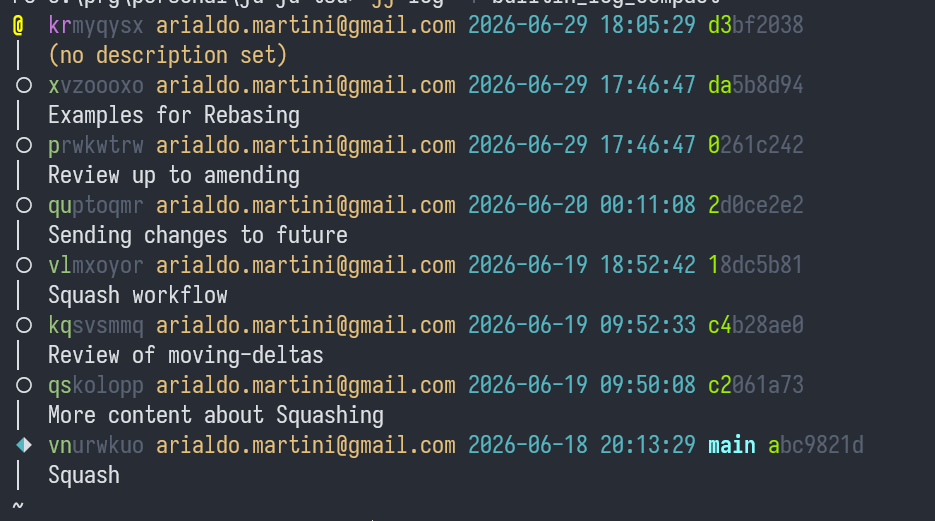
Git only displays the first 7 characters of SHA1s. Why 7? Because
it’s usually enough to prevent ambiguity. In fact, Git could
use less, but it doesn’t try to optimize.
Jujutsu goes a step further: if 2 chars prevent ambiguity, it
grays out the rest.
Take it to the limit
When something is Good™, it deserves to be taken to the next level.
Instead of:
@  xlptstlm arialdo@ik.me 2026-06-06 17:18:46 039a04d
│  (no description set)
◆  poqzxkvk arialdo@ik.me 2026-06-06 16:32:39 main 9376594
│  Review of identity
~  (elided revisions)
│ ○  zzmuxzrl arialdo@ik.me 2026-06-06 16:32:45 pages 29b4782
│ │  typo: need -> needs
│ ○  wuwotnsy arialdo@ik.me 2026-06-06 16:23:08 e655e34
│ │  Review of Why
│ ○  puvzpnwv arialdo@ik.me 2026-06-06 15:19:09 eae4a1f
│ │  PRs are welcome
│ ○  zzsynxzk arialdo@ik.me 2026-06-06 14:26:10 3e3cf7b
│ │  Publish script
│ ○  yroskows arialdo@ik.me 2026-06-06 14:08:55 af28aa37
├─╯  init pages branch
◆  zzz root() 0
I prefer:
@  x
◆  po   🔒  Review of identity main
~  (elided revisions)
│ ○  zzm      typo: need -> needs pages
│ ○  w        Review of Why
│ ○  pu       PRs are welcome
│ ○  zzs      Publish script
│ ○  y        init pages branch
├─╯
◆  zzz  🔒  empty
This style:
- Hides the Git SHA1 entirely.
- Displays only bare minumum of Change IDs.
- Use 1 line per commit.
I’ll use this template from now on. Check Human Friendly Log to have it too.
In practice
- Run
jj git initin any Git repo. - It’s safe: it lives in a
.jjdirectory Git will ignore. - Keep using Git as usual.
- When you need, use Jujutsu as a Git client on steroids.
- Try
jj log. It’s harmless and often cleaner thangit log.
Let’s Dive In
During our amend, you never committed, yet you amended commits. How
can it be?
Time to find out!
Pulling Teeth
Here’s my formula to learn Jujutsu:
- Clear the slate. Drop your Git mental model.
- Embrace a few new assumptions. They’ll seem repugnant at first. Suspend judgment: they pay off.
- Learn the very few building blocks.
- Profit.
After this, you will:
- Be astounded by amazing, extravagant workflows. Learn them, invent new ones.
Let’s tackle step 2. Prepare to cringe.
Git Was An Adorable Maverick
As an old programmer, I clearly remember Git’s debut sparking angry protests:
- “A local copy of the whole history? It’s so stupid!”
- “Branches aren’t real branches!”
- “Rewriting history? Heresy!”
- “No central server! The world will collapse into anarchy!”
It was a fun show and I never expected a sequel.
Jujutsu, More Maverick Than Git
Let’s pull this tooth (feel free to yell at clouds):
- It force-pushes by default.
- It commits by itself.
- Even
statusandlogcommit. - Rebases happen automatically.
- By default, Git ignores files. Jujutsu tracks them.
- Commits are mutable.
- Detached HEAD is the standard.
- You idiomatically commit before coding.
- It deletes commits without warning.
Jujutsu seems to be designed to upset Git fans, and by what it removes:
- It’s branchless.
- There’s no index.
- No stash.
- No
mergecommand. - No
cherry-pick,reset, oradd.
Given this baseline, you might be surprised that Jujutsu users:
- Often work in the middle of a branch, not at its tip.
- Send changes forward and backward through time.
- Work on multiple branches at once.
- Develop features simultaneously, then dispatch changes to their branches.
If you are horrified, wait until you realize you might love every bit of it.
Still here? Good. Ready for step 3. Let’s learn the building blocks and finally profit.
Elements of a Grammar
Git has 160+ commands. Some are plumbing (hash-object,
write-tree); some are porcelain (commit, log), built on top of
the underlying plumbing commands.
Some porcelain operations are combinations of others. For example,
pull is fetch + merge/rebase. cherry-pick is diff +
apply + commit. A rebase is basically a series of cherry-picks
followed by a reset.
Here’s a challenge. What basic porcelain commands would suffice to build an entire versioning system?
Think about it.
Basic Commands
If you thought of CRUD1, you nailed it! To manipulate the Changes of your history tree, you need:
| Operation | Command |
|---|---|
| Create | new |
| Read | show |
| Update | edit |
| Delete | abandon |
them.
Notice I wrote “Changes”, not “commits”. Jujutsu creates a different
commit when you amend, referencing it with the same Change ID so
treating it as the same thing. That thing is a Change:
“a commit as it evolves over time” — Glossary.
Beyond CRUD, you’ll also want to:
| Operation | Command |
|---|---|
| Move a Change | rebase |
| Move edits to another Change | squash |
| Copy files between Changes | restore |
| Display the history tree | log |
| List / undo / redo operations | op log / undo / redo |
That’s… basically it? Learn these and you master Jujutsu.
Macro Commands
Like in Git, some commands combine others:
| Operation | Possible command |
|---|---|
| Split a Change in 2 | split |
| Duplicate a Change | duplicate |
| Juggle Changes interactively | arrange |
| Bisect (the best Git command) | bisect |
| Magically distribute edits where they belong | absorb |
I swear, the first two sets alone will take you further than Git ever did.
Open a terminal, grab your keyboard, and prepare to get your hands dirty.
-
https://en.wikipedia.org/wiki/Create,_read,_update_and_delete ↩
Recommendations Before Typing
-
We’ll use throwaway repos. When you test commands on real ones, make a copy first. Jujutsu is powerful; mistakes can leave you far from where you started.
-
We’ll do many exercises. Some will feel artificial, not something you’d typically do at work.
We’re here to learn how Jujutsu thinks by pushing it to the limit. Contrived cases help you internalize the underlying model. Eventually, practical cases becomes muscle memory. -
Finally, Change IDs are random. When yours don’t match mine, please adjust your commands accordingly.
Init
Important
Where you discover why a brand new repository already contains 2 commits.
jj git init adds Jujutsu to an existing Git repository. If there
isn’t one, it creates it.
Let’s start an empty repo:
jj git init
Initialized repo in "."
Hint: Running `git clean -xdf` will remove `.jj/`!
Multiple backends
Why isn’t it just jj init? Jujutsu is modular and supports different
storage backends. We’ll stick with Git, so never mind.
Won’t jj and Git clash?
Relax. Jujutsu lives in the hidden .jj directory, which Git
ignores. You probably noticed the hint:
Hint: Running `git clean -xdf` will remove `.jj/`!
It makes sense: git clean deletes ignored directories.
jj git also offers sub-commands like jj git clone and jj git fetch1.
Want To Remove Jujutsu?
Delete .jj and Jujutsu is gone2.
Log
Try a git log:
fatal: your current branch 'main' does not have any commits yet
As expected. Git shows no history without commits.
What about jj log?
@  x           empty
◆  z       🔒   empty
Jeez! Where Git fatally errors out, Jujutsu shows 2 Changes! How?
The Origin of Time
Let’s inspect z:
jj show z
Commit ID: 0000000000000000000000000000000000000000
Change ID: zzzzzzzzzzzzzzzzzzzzzzzzzzzzzzzz
Author   : (no name set) <(no email set)> (1970-01-01 02:00:00)
Committer: (no name set) <(no email set)> (1970-01-01 02:00:00)

    (no description set)
zzzzzzzzzzzzzzzzzzzzzzzzzzzzzzzz looks like a Null Object
Pattern: it is the
“root Change”, the black hole every repository originates from. In
Git, it’s implicit, meaning orphaned
branches
need special commands. Not in Jujutsu: zzzz is a loving parent,
giving every orphan a home.
Fine, zzzz makes sense. What about the Change on top of it? This requires a bit of theory.
Collapsing areas
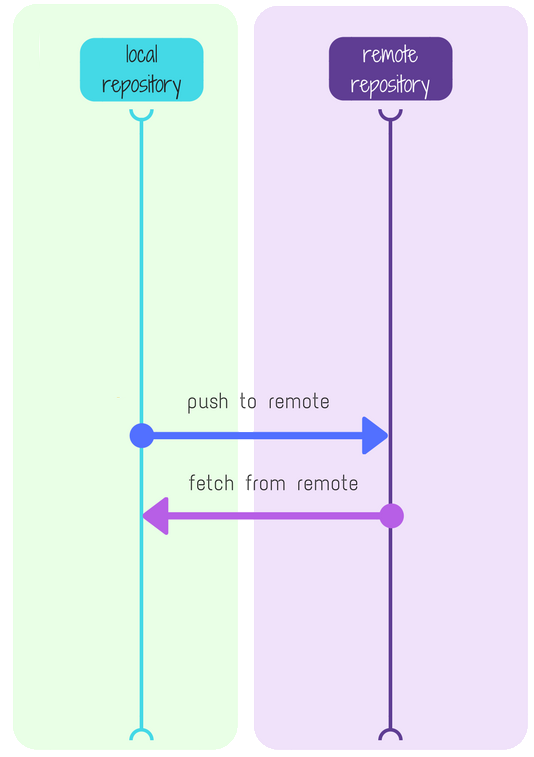
One way to understand Git is visualizing its distinct areas and how commands operate on them3:
In Jujutsu, stash, index, working area, and local repository all collapse into a single area:
The @ in:
@  x           empty
◆  z       🔒   empty
represents the current file system. But it’s also a commit in your repo. The two just happen to be the same.
Why is it already there? Well, when you run git init, the empty
working copy already existed: it’s only fair this is reflected in the
log.
What’s inside x?
Is x similar to zzzzz? What does it contain?
Warning
How can you find out?
Tip
If you guessed
jj show, good job!jj show xCommit ID: cb39db5ba245a72667c7bbd055b625e9522b74f8 Change ID: xmvkoxkuvlrynmwooqtrxtxptmswruqq Author : Arialdo <arialdo@ik.me> (2026-06-09 16:10:17) Committer: Arialdo <arialdo@ik.me> (2026-06-09 17:44:18) (no description set)
It’s descriptionless and empty, but it’s a legit commit with its own
SHA1 (cb39db5). Git itself acknowledges it as real:
git show cb39db5
commit cb39db5ba245a72667c7bbd055b625e9522b74f8
Author: Arialdo <arialdo@ik.me>
Date:   Tue Jun 9 16:10:17 2026 +0200
Basically, you’ve already committed! Curious how to do it deliberately next time?
-
In practical terms, using
gitorjj gitis essentially the same;jj gitjust adds a touch of extra safety, e.g. it won’t create new branches unless you explicitly ask. ↩ -
Strictly speaking, Jujutsu leaves behind internal refs, that you can clean with
git for-each-ref --format='delete %(refname)' refs/jj/ | git update-ref --stdin. ↩ -
Image by @pabloulloacastro - https://medium.com/@pabloulloacastro/software-en-equipo-git-stash-3e6adbea821c ↩
Committing
Important
Where you get what it means that Jujutsu automatically commits.
Wait a sec. If @ represents the current file system:
@  x           empty
◆  z       🔒   empty
which is empty because your project is also empty, what happens if you add a file? Let’s see:
touch README.md
jj log
@  x
◆  z       🔒   empty
Interestingly, x is no longer empty. Git detects a new, untracked
file:
git status
Changes not staged for commit:
        new file:   README.md
What’s Jujutsu’s opinion?
jj status
Working copy changes:
A README.md
Working copy  (@) : xmvkoxku b727840f (no description set)
Parent commit (@-): zzzzzzzz 00000000 (empty) (no description set)
Two things to notice:
- Jujutsu automatically tracked the file (
A README.md). In fact, there’s no equivalent ofgit add. - Easy to miss: the SHA1 changed.
Warning
Inspect
xagain. What’s in it?
Tip
It must contain
README.md! In fact,xand your filesystem are one and the same: change either, and you change both.jj show xCommit ID: b727840fcbf04053c43d30b8581876260a240840 Change ID: xmvkoxkuvlrynmwooqtrxtxptmswruqq Author : Arialdo <arialdo@ik.me> (2026-06-09 16:10:17) Committer: Arialdo <arialdo@ik.me> (2026-06-09 16:10:17) (no description set) Added regular file README.md: (empty)
Oh dear! By creating a file, you performed a git commit --amend
under the hood.
Warning
How do you add content to
README.mdand amendxagain?
Tip
Just edit
README.md!echo "Hello, world" > README.md jj show xCommit ID: 126c51d1a7bddbd205721e64a0824233c68a56a0 Change ID: xmvkoxkuvlrynmwooqtrxtxptmswruqq Author : Arialdo <arialdo@ik.me> (2026-06-09 16:10:17) Committer: Arialdo <arialdo@ik.me> (2026-06-09 16:13:12) (no description set) Added regular file README.md: 1: Hello, worldIf you guessed right, bravo! In Jujutsu, the working directory and repository are the same area and always match. The lines:
Added regular file README.md:
        1: Hello, world
confirm
xholdsREADME.mdwith its content.
It’s yet another SHA1, but to Jujutsu, it’s still Changex.
The mental model is: editing the file system directly edits the commit. This may feel dangerous, but you will see some safer practices like the Squash Workflow later.
How Many Commits Have You Created and Abandoned Already?
Does it matter? Dangling commits are invisible to Git anyway. If you
run git log, Git throws its hands up as though nothing happened:
git log
fatal: your current branch 'main' does not have any commits yet
For Git to see your commit, it needs a branch (a Bookmark, in Jujutsu’s lingo) pointing to it:
jj bookmark set main
Don’t worry, there’s a whole chapter on Bookmarks coming up. All in good time!
Creating, Describing And Abandoning Changes
Creating, Describing And Abandoning Changes
Important
Where you learn to create, describe, and abandon commits.
@  x
◆  z       �   empty
Let’s give x a description (a message, in Git terminology) using jj description or jj desc:
jj desc -m "Initial commit"
Working copy  (@) now at: xmvkoxku 45467cdf Initial commit
Parent commit (@-)      : zzzzzzzz 00000000 (empty) (no description set)

@  x    Initial commit
◆  z       �   empty
Yes, it’s another hidden Git amend: we won’t repeat that anymore.
New Change
How do you create a new commit?
Remember the CRUD table:
| Operation | Command |
|---|---|
| Create | new |
| Read | show |
| Update | edit |
| Delete | abandon |
Sure, it’s jj new.
jj new -m "A license"
@  xp   empty A license
○  xm   Initial commit
◆  z    empty
This creates a new, empty Change with the specified message. The @ means xp is now the Current Change you are editing.
In Jujutsu, it’s idiomatic (though optional) to commit before
coding. You haven’t added a license file yet, so the Change is
empty. We’ll expand on this workflow later.
Descriptions are optional. You can create a descriptionless Change and add a message later with jj desc.
Let’s add the license file:
echo "This software is open source" > LICENSE
Rest assured, on the next jj command, the file is secured in the repository. Ready for the next Change:
jj new -m "A dummy React.js application"
@  o            empty A dummy React.js application
○  t            A license
○  x            Initial commit
◆  z       �   empty
You get the point. This is a possible workflow, but we’ll soon see more convenient ones, like The Squash Workflow.
Deleting Changes
Warning
How do you delete a Change? Check the table above.
Tip
Of course,
jj abandon.
Withjj abandon -r <CHANGE-ID>you can delete any Change, no matter its position in the history tree.
Warning
Get rid of the Change adding the license.
Tip
jj abandon -r t@ o empty A dummy React.js application ○ x Initial commit ◆ z � emptyCheck the filesystem: the license is gone.
Hint: when there’s no ambiguity, you can use positional arguments, so
jj abandon tworks too.
Notice you manipulated a Change you weren’t currently on. This feature is everywhere in Jujutsu: we cover it in On Not Being There.
Resurrecting And Branching
Important
You play with undoing operations, start new development lines by inserting Changes mid-branch, and edit messages deep in the history tree. It’s easier than it sounds!
Warning
Changed your mind? Want to resurrect the license commit?
Tip
Yes! Undoing is always
jj undo:jj undoUndid operation: 3a6c93cd543e (2026-06-10 15:48:34) abandon commit c25416325e097a36d0cc1216fb4938e0c44b28a8@ o empty A dummy React.js application ○ t A license ○ x Initial commit ◆ z empty
Back to life!
Adding Changes In Arbitrary Positions
jj new adds a Change on top of the Current Change. But you can
insert Changes anywhere. Select where using -r (the same option used
with abandon):
jj new -r x -m "One here"
@  k    empty One here                        <-- this one
│ ○  o  empty A dummy React.js application
│ ○  t  A license
├─╯
○  x    Initial commit
◆  z    empty
This started a new branch line, which you can grow with more jj new
commands.
Want to insert a Change right before o (between o and t)? Use
--before (or -B):
new --before o -m "One there"
○  o    empty A dummy React.js application
@  zv   empty One there                       <-- this one
○  t    A license
│ ○  k  empty One here
├─╯
○  x    Initial commit
◆  zz   empty
Everything Is Dual
Symmetrically, there’s also --after (or -A).
Warning
Insert a commit right after
zz.
Tip
jj new -A zz -m "Initial commit is no more"~ ○ x Initial commit @ m empty Initial commit is no more ◆ zz empty
In summary, starting from:
o-o-R-o-o
This is what you get with the 3 different options:
jj new -r R

o-o-R-o-o
     \
      X
jj new --after R

o-o-R-X-o-o
jj new --before R

o-o-X-R-o-o
These moves are perfectly possible in Git, but cumbersome because you must handle the underlying mechanics. So, it’s unlikely you have performed them often.
The Ubiquitous -r Option
x’s message is Initial commit:
○  x    Initial commit                     <-- this one
@  m    empty Initial commit is no more
◆  zz   empty
Having inserted a Change before it, the description is now misleading. Mildly infuriating! How to amend it?
You’ll love this about Jujutsu: once you learn a grammar element, you
can use it everywhere it makes sense. -r can be used with jj new
to position a Change, with log to define what to display, with jj desc to target a message…
Warning
How to fix
x’s description?
Tip
jj desc -r x -m "Hello, world"○ x Hello, world @ m empty Initial commit is no more ◆ zz emptyFixed. Good job.
What’s The Point of Creating Empty Commits?
Who would ever create empty commits, though? Notice:
- You can
jj editthem later and add actual content. - Committing before coding is idiomatic in Jujutsu workflows.
- Editing isn’t the only way to populate Changes. You’ll soon move edits and files from a distance, and empty commits act as useful placeholders.
Cleaning up
Here’s a Chapter closing exercise. Move to o:
jj edit o
Get rid of the dummy commits you just created:
k: One herezv: One therem: Initial commit is no more
Warning
How would you do that?
Tip
Combine
abandonand-r:jj abandon -r k -r zv -r m@ o empty A dummy React.js application ○ t A license ○ x Hello, world ◆ z emptyCongrats if you got it!
Many commands operate on single or multiple Changes, contiguous or sparse. These are equivalent:
jj abandon -r k -r zv -r mjj abandon k zv mjj abandon -r 'k | zv | m'
jj abandon k zv m works because when there is no ambiguity, revsets
can be passed as positional arguments.
The last example uses the | operator from the Revset
Language, a powerful yet
simple syntax for selecting Change sets. Read more in A Glimpse of
the Revset Language.
Where To Go From Here?
Admittedly, these exercises were a bit contrived. Make them your own, and we will soon apply them to genuinely useful cases.
In the meantime, be proud! You just executed manipulations that are far from trivial in raw Git.
Intermezzo: A Taste Of a Fanciful Workflow
Indulge me in a little digression.
Why create a commit in the middle of a branch? How frequent can this use case possibly be?
I’m glad you asked! It’s the basis of powerful workflows you might eventually love. We explore this in Dispatching Edits from Megamerges. Here’s a preview.
Say you have 3 local branches:
@  u       **feat-3**
○  tn
○  y
│
│ ○  n       **feat-2**
│ ○  k
├─╯
│ ○  m       **feat-1**
│ ○  l
│ ○  p
├─╯
~
CI/CD will eventually merge them, but why wait? You can merge locally
, and get rid of the merge with jj abandon in a breeze. Without
further ado:
@  kx
○      x     Megamerge
├─┬─╮
│ │ ○  u       **feat-3**
│ │ ○  tn
│ │ ○  y
│ ○ │  m       **feat-1**
│ ○ │  l
│ ○ │  p
│ ├─╯
○ │  n       **feat-2**
○ │  kt
├─╯
~
You might wonder: how did I create merge commit
xwithout ajj mergecommand?
Believe it or not, you already have the ingredients to figure it out. Think about it. The answer is coming up in two pages.
Now, say you need to develop feat-2. Why not work directly from the
megamerge, ensuring feat-2 integrates smoothly with the other 2
branches immediately?
Do your work in kx. When finished, add a new empty Change on top of feat-2:
@  kx
○      x     Megamerge
├─┬─╮
│ │ ○  u       **feat-3**
│ │ ○  tn
│ │ ○  y
│ ○ │  m       **feat-1**
│ ○ │  l
│ ○ │  p
│ ├─╯
○ │  s                      <--- new Change
○ │  n       **feat-2**
○ │  kt
├─╯
~
Then, you send your work from kz back to the empty commit s using
jj squash -t s (you’ll learn how to dispatch edits soon).
Sounds insane? It is! I was also shocked the first time. It didn’t take long before it felt more useful than weird. It’s now one of my daily drivers. You might find it convenient too.
Let’s continue; you’re close to mastering the basics.
Clone
Important
You learn how to invoke Git from Jujutsu.
Enough with fictional repositories. Let’s use this one:
https://codeberg.org/arialdo/jj-playground.git
It contains code from the React.js Tic Tac Toe tutorial.
Warning
Clone it using only
jj. Checkjj git --helpfor options.
Tip
Easy, right?
jj git clone https://codeberg.org/arialdo/jj-playground.git
jj git cloneis equivalent togit clone+jj init. Check outjj git --helpfor the other commands.
jj log shows only 2 Changes and marks one with a diamond ◆,
meaning it’s immutable:
@  o        ▢
◆  k    🔒  Displays X X **main**
│
~
main is a Git branch (a Bookmark, in Jujutsu’s lingo).
For reference, here are the symbols jj log uses:
| Symbol | Meaning |
|---|---|
○ | Mutable node |
◆ | Immutable node |
@ | The Current Change |
@ | The Current Change, immutable |
Immutable nodes prevent modifying published commits. For simplicity, we’ll disable this protection by adding a local Bookmark for each remote branch:
jj bookmark track '*'
You’ll learn about branches and remotes in Bookmarks.
Ready to go! The log should look like this:
@  ok       ▢
│ ○  qn       Add the CSS file **css**
│ ○  rt       Link to CSS
│ │ ○  oz       Play instructions **manual**
│ │ ○  kx       Play manual
│ ├─╯
│ │ ○  z        Click alternates Xs and Os **dev**
│ │ ○  v        Click sets a X
│ │ ○  s        Square has state
│ ├─╯
│ ○  qq       Fix
│ ○  n        Square is interactive
│ ○  ru       Board() invokes Square()
╭─┤
│ ○  ym       fix name: Square -> Board
│ ○  x        WIP delete me
│ ○  yz       LICENSE
│ ○  w        A board full of X
├─╯
◆  kk   🔒  Displays X X **main**
│
~
Merge
Important
Although there’s no
mergecommand, you will still merge two branches.
A couple pages ago I teased a puzzle: you can create lines of commits, but how do you merge them?
Say you want to merge dev with manual, that is z with o,
going from:
○  z           Click alternates Xs and Os **dev**
○  v            Click sets a X
○  s            Square has state
│
│ ○  o          Play instructions **manual**
│ ○  kx         Play manual
├─╯
~
to:
@    vz          Here's the merge
├─╮
│ ○  o          Play instructions instructions **dev**
│ ○  kx         Play manual
○ │  z          Click alternates Xs and Os **manual**
○ │  vv         Click sets a X
○ │  s          Square has state
├─╯
~
Your turn. I promise you already know the command.
Warning
What would you type?
Note
Remember, to add a Change on top of
Xyou run:jj new -r XThe
-r Xpart means:Hey Jujutsu! Create a new Change, having `X` as its parent.
Note
Most commits have 1 parent.
All merge commits share something special.
Tip
A merge commit is simply a new commit with 2 parents!
To give a new Change 2 parents, pass both using-r. In this case:jj new -r dev -r manual -m "Here's the merge"
Notice that neither dev nor manual moved.
If you got it, kudos! That wasn’t easy!
Unmerge
Important
You discover that undoing a merge is trivial.
How do you unmerge?
@    nvn      ▢ Here's the merge
├─╮
│ ○  o        Play instructions **manual**
│ ○  kx       Play manual
○ │  z        Click alternates Xs and Os **dev**
○ │  v        Click sets a X
○ │  s        Square has state
├─╯
│
~
Easy! If merging was your last operation, just use jj undo:
jj undo
○  o        Play instructions **manual**
○  kx       Play manual
│ ○  z        Click alternates Xs and Os **dev**
│ ○  v        Click sets a X
│ ○  s        Square has state
├─╯
│
~
Unmerging With abandon
Alternatively, you could jj abandon the merge Change. Let’s try it.
First, start over:
jj redo
Yes! As seen in the Quick Start, you can
undo an undo . Jujutsu’s undo works like Emacs’: instead of merely
going back in time, it appends the revert operation to a log. No
information is ever lost. Curious? Read Emacs’
Undo.
You are back to:
@    vz          Here's the merge
├─╮
│ ○  o          Play instructions instructions **dev**
│ ○  kx         Play manual
○ │  z          Click alternates Xs and Os **manual**
○ │  vv         Click sets a X
○ │  s          Square has state
├─╯
~
Do yourself a favor: move somewhere else before deleting the merge, or you’ll abandon your Current Change1:
jj edit n
Your turn.
Warning
Unmerge without using
undo.
Tip
Elementary, my dear Watson!
jj abandon vz○ o Play instructions **manual** ○ kx Play manual │ ○ z Click alternates Xs and Os **dev** │ ○ v Click sets a X │ ○ s Square has state ├─╯ ~
Can you merge more than 2 Changes? Sure! In Git this is called an “octopus merge”: it’s rare enough to be considered an anti-pattern. Jujutsu embraces it, instead. You’ll see fancy workflows based on it.
Warning
Now, create an octopus merge between
css,manualanddev:
Tip
jj new -r css -r manual -r dev@ kn ▢ ├─┬─╮ │ │ ○ z Click alternates Xs and Os **dev** │ │ ○ v Click sets a X │ │ ○ s Square has state │ ○ │ o Play instructions **manual** │ ○ │ kx Play manual │ ├─╯ ○ │ qn Add the CSS file **css** ○ │ rt Link to CSS ├─╯ ~
Too easy? See? You already think like a jujutsuka!
Notice: you merged the tips of 3 branches, but nothing stopped you
from referencing a Change that wasn’t at a branch tip.
In Git, undoing a merge ranges from easy to painful, depending on your experience. Jujutsu makes it trivial regardless.
-
Abandoning the Current Change is perfectly legit, but it might surprise you the first time. Read Pulling the Rug Out Under Oneself for details. ↩
On Not Being There
A quick thought before moving to more exciting features.
Warning
What’s the Git command to merge branch
Awith branchB?
Caught off guard, some might answer:
git merge A B
The correct answer is:
Tip
It depends.
- If the current branch is
A, it’sgit merge B.- If the current branch is
B, it’sgit merge A.- If it’s neither, you need
git checkout A && git merge Borgit checkout B && git merge A.
git mergealways assumes the current branch.
Why Is It Like That?
Why isn’t it git merge A B? Why do commands like cherry-pick,
rebase and pull assume the current branch implicitly?
Because of conflicts. When things go wrong, Git can’t store the result as a commit. It stops, demanding you resolve the problem on the file system. So, you have to be there.
And Jujutsu?
You probably noticed: when merging with Jujutsu, you didn’t have to be
anywhere in particular. You select parents A and B without being
in either. Similarly, you can can also abandon and commit Changes from
a distance.
This is possible because of the unique way Jujutsu handles conflicts, as first-class citizens. You’ll soon see what a lifesaver this is. For now, just grasp the gist: you can operate on Changes without being there.
It’s History All The Way Down
Important
You discover a meta-repository where every commit has its own history
You find out that everything you do with
jjis safely tracked.
Back to The Start
For the next sections, you need a fresh copy of the repo you cloned before. There are at least two ways to get it.
-
Re-clone.
-
Or, keep running
jj undountil you reach the state right after executingjj git remote remove origin.
Which begs the question: where do undo and redo fetch their
information from? The next few pages shed light on this, which will
give you a 3rd option.
So, hold on a second before restarting from the scratch.
History of a Change
Important
You learn how to inspect a Change’s past.
Every Change has its History.
Try this exercise. Target any Change you like, such as n. Make some
modifications to it:
- Update its description:
jj desc -r n -m foojj desc -r n -m barjj desc -r n -m baz
- Check it out and edit some files:
jj edit -r n
- Add a Change before it:
jj new -B n
Under the hood, each operation creates a new Git commit, but the
immutable Change ID n always points to the most recent one. So,
throughout its existence, n goes through different states: in a
sense, n has its own history tree.
This isn’t just a metaphor. You can actually isplay that history with
evolog:
jj evolog -r n
  ○  nvokxlrr arialdo@ik.me 2026-06-12 22:52:51 c655c8d7
  │  baz
  │  -- operation 2e1a28a42c55 abandon commit 668d65f4f0eea395a4c3d0a7ed890254a60865d4
  ○  nvokxlrr/1 arialdo@ik.me 2026-06-12 22:52:45 6e2c1c9a (hidden)
  │  baz
  │  -- operation 500080ebf19a new empty commit
  ○  nvokxlrr/2 arialdo@ik.me 2026-06-12 22:52:39 983a1599 (hidden)
  │  baz
  │  -- operation 3075743719f1 describe commit 22c5df185272af6f25b1d4227cd271971aa1baa5
  ○  nvokxlrr/3 arialdo@ik.me 2026-06-12 22:52:37 22c5df18 (hidden)
  │  bar
  │  -- operation 3daa0e64a476 describe commit 21a546e29d1cfcebdc0aafd8023c3d60416bff88
  ○  nvokxlrr/4 arialdo@ik.me 2026-06-12 22:52:34 21a546e2 (hidden)
  │  foo
  │  -- operation 4c7fc048be20 describe commit a857703785c7971ec20ccd826e36557f8b7d5a72
  ○  nvokxlrr/5 arialdo@ik.me 2026-06-12 22:52:28 a8577037 (hidden)
  │  Foo
  │  -- operation a6df8a6d9206 describe commit 03e16e725052f4ba32bb0a1a31a029860a86519a
  ○  nvokxlrr/6 arialdo@ik.me 2026-06-10 14:33:07 03e16e72 (hidden)
     Square is interactive
Consider this the meta-repository tracking n’s history. Its states
are called n/1, n/2, etc. The /1 is the Change Offset. These
are ordinary, but hidden, commits: unlike Git’s reflog, you can use
them in commands without learning special syntax.
Warning
How do you inspect the changes stored in
n/5?
Tip
Just run
jj show n/5.Simple, isn’t it?
You’ll often use this meta-history to recover lost files.
The History Beneath the History
Important
You travel your repository back in time, all the way to when you cloned it.
If every Change has its own history, your whole repository must have one too. It’s only logical:
- Initially (
000000000000), it didn’t exist. - Then it was created.
- Then you added a Change.
- Then you edited a description.
Jujutsu remembers everything: almost every command triggers a working-copy snapshot. You can inspect this meta-history with:
jj op log
  ○  281b30d872a3 arialdo@mbuto default@ 3 hours ago, lasted 4 milliseconds
  │  remove git remote origin
  │  args: jj git remote remove origin
  ○  8eea9aa811a1 arialdo@mbuto default@ 3 hours ago, lasted 14 milliseconds
  │  check out git remote's branch: main
  │  args: jj git clone https://codeberg.org/arialdo/jj-playground.git
  ○  eff465d67569 arialdo@mbuto default@ 3 hours ago, lasted 2 seconds
  │  fetch from git remote into empty repo
  │  args: jj git clone https://codeberg.org/arialdo/jj-playground.git
  ○  ee32fa88d5f2 arialdo@mbuto default@ 3 hours ago, lasted 3 milliseconds
  │  add git remote origin
  │  args: jj git clone https://codeberg.org/arialdo/jj-playground.git
  ○  23c04169eec1 arialdo@mbuto 3 hours ago, lasted 6 milliseconds
  │  add workspace 'default'
  ○  000000000000 root()
Can you envision what this is? It’s the repository of your repository’s history!
Rewind!
Restoring your repo exactly as it was before an operation is
trivial. Everything originates from 000000000000, each command
creates a full snapshot with its ID. Feed that ID to jj op restore
and you jump back to that exact moment.
Warning
You want to go back to when you performed:
jj git clone https://codeberg.org/arialdo/jj-playground.git
cd jj-playground
jj bookmark track '*'
Tip
- Run
jj op log.- Find the item for
git remote remove origin. It should be the 5th operation from000000000000.- Copy its ID and run:
jj op restore <ID>Spot on? Congrats!
You could also use:
jj op restore 000000000000+++++to indicate the 5th operation (
+++++) after000000000000.
Check the file system and log: you’re back to when you cloned the repo. Here’s the 3rd option we mentioned before.
Like Emacs, Jujutsu Never Forgets
Check jj op log again. You will find a record for the jj op restore you have just run. Yep! Even going back in time is tracked
down. This lets you undo an undo by restoring its parent. Or, simply:
this is what jj redo does.
Basically:
- Every operation (including
restoreandundo) appends a snapshot to the op log. op restoreapplies an old snapshot and appends the result to history.undorestores the previous op.
We’ve all dreaded performing risky Git operations. I hope that armed with these tools, you’ll never feel that way again.
Ready For The Next Chapter?
Run:
jj op restore 000000000000+++++
Makes all Changes of main mutable running this extra command:1
jj config set --repo 'revset-aliases."trunk()"' 'none()'
Your repo should be:
○  qn       Add the CSS file **css**
○  rt       Link to CSS
│ ○  o        Play instructions **manual**
│ ○  kx       Play manual
├─╯
│ ○  zx       Click alternates Xs and Os **dev**
│ ○  v        Click sets a X
│ ○  s        Square has state
├─╯
○  qq       Fix
○  n        Square is interactive
○    ru       Board() invokes Square()
├─╮
○ │  ym       fix name: Square -> Board
○ │  x        WIP delete me
○ │  yz       LICENSE
○ │  ws       A board full of X
├─╯
○  kk       Displays X X **main**
○  wx       Fails
○  rx       Scaffold applicatio
◆  zz   🔒  ▢
Good. You’re ready to play with rebase and squash.
-
Jujutsu keeps the Changes of trunk (
main) immutable by default. It’s a safety net against rewriting published commits. We’re about to rewrite history on purpose so we can turn that guardrail off instructing Jujutsu that we don’t have a trunk.
You’ll see that safety net at work when we talk about remotes. I promise: it’s amazing. ↩
Moving Things Around
Important
- Flip 2 Changes in a branch.
- Send 2 Changes into 2 separate branches.
- Move a file to a future Change.
- Fix a typo from 10 Changes ago.
- Rebase 2 branches simultaneously.
- Reflect on your new history-bending abilities. Invent new audacious (and useful) moves.
- Profit.
You can perform all sorts of black magic with just 2 commands:
| Operation | Command |
|---|---|
| Move a Change | rebase |
| Move your edits | squash |
Best of all, they only take a few minutes to learn.
Moving Changes Around
Moving Changes
Important
You discover that rebasing isn’t just moving a branch to a different base.
You can insert a single Change right in the middle of the history tree.
jj rebase works by specifying:
- Which Changes you want to move (
-r). - Where you want to move them (
--onto,--beforeor--after, same options ofjj new).
So:
jj rebase -r X -o Y
moves X on top of Y.
The sample repository is full of mistakes and unfinished work. Let’s fix them.
First, the License
Oh, no! I added the license too late, in Change yz:
~
├─╮
○ │  ym       fix name: Square -> Board
○ │  x        WIP delete me
○ │  yz       LICENSE                      <-- here
○ │  ws       A board full of X
├─╯
○  kk       Displays X X **main**
○  wx       Fails
○  rx       Scaffold applicatio
◆  zz   🔒  empty                          <-- should have been right after root()
jj show --summary yz
A LICENSE
Ideally, the license should be the very first commit. Somehow, yz
ended up stranded in a merged branch.
Warning
Can you move
yzso it becomes the initial commit?
Tip
jj rebase -r yz -A zzor:
jj rebase -r yz -B rx
Things Committed by Mistake
Talking about that branch, its Change x has the suspicious message
WIP: delete me.
Warning
What does it contain?
Tip
jj show x --summaryA node_modules/yaml/LICENSE A node_modules/yaml/index.js
Ouch! I committed node_modules…
Warning
How do you get rid of it?
Tip
jj abandon xAnd
xis gone.
Why this exercise? Because under the hood, while abandoning, Jujutsu
did move Changes: it rebased x’s descendants onto yz. Moving
things doesn’t always look like moving things: Jujutsu commands
capture your intent, not the underlying mechanics.
Typos
Notice the typo in rx’s message: applicatio instead of application.
Warning
How would you fix it?
Tip
jj desc -r rx -m "Scaffold application"Rebased 13 descendant commits Working copy (@) now at: xxuknwml 770ae789 WIP delete me Parent commit (@-) : yzxvwmnz 02b946ad LICENSE
Again: your intent was editing a message, but the log (Rebased 13 descendant commits) reveals it’s still about moving Changes.
Let’s look at cases where your explicit intent is actually moving Changes.
A Glimpse of the Revset Language
Important
You learn to describe sets of Changes, and how
rebasecouldn’t care less about their position.
With Git, you typically rebase entire branches. Jujutsu’s rebase
makes no assumptions about what you want to move.
You saw how to move a single Change. You can just as easily move multiple Changes, by specifying them:
jj rebase -r X -r Y -o O
This moves both X and Y onto O. It doesn’t matter where they
are: they can even be sparse!
Instead of listing Changes one by one, use the Revset Language. Here’s a taste:
| Notation | Meaning |
|---|---|
X | Y | Changes in set X plus Changes in set Y. |
X & Y | Changes in both X and Y. |
~X | Changes not in X. |
X:: | X and all its descendants. |
::X | X and all its ancestors. |
X::Y | All Changes between X and Y, included. |
X and Y don’t have to be single Changes; they can be sets
themselves. Each expression returns a set, and you can recursively
combine them. This expressiveness, along with custom functions, makes
Revsets immensely more powerful than Git’s revspecs.
Moving Sets of Changes
Here’s a silly exercise: can you move sparse Changes too? Sure, why
not! In fact, rebase works with whatever set of Changes you pass
it.
Say that for some (odd) reason you want to move v, and yz on top
of rt:
  m        ▢
○  qn       Add the CSS file **css***
○  rt       Link to CSS                        <-- here
│ ○  o        Play instructions **manual***
│ ○  kx       Play manual
├─╯
│ ○  zx       Click alternates Xs and Os **dev***
│ ○  v        Click sets a X                   <-- v
│ ○  s        Square has state
├─╯
○  qq       Fix
○  n        Square is interactive
○    ru       Board() invokes Square()
├─╮
○ │  ym       fix name: Square -> Board
○ │  ws       A board full of X
├─╯
○  kk       Displays X X **main***
○  wx       Fails
○  rx       Scaffold application
○  yz       LICENSE                            <-- yz
◆  zz   🔒  ▢
Warning
How would you do that in one shot?
Tip
Using a revset expression:
jj rebase -r 'yz | v' -o rt@ m ▢ ○ qn Add the CSS file css* │ ○ v Click sets a X <-- v │ ○ yz LICENSE <-- yz ├─╯ ○ rt Link to CSS <-- new base │ ○ o Play instructions manual* │ ○ kx Play manual ├─╯ ~
Before the next page, undo that move:
jj undo
Feel free to spend some time moving sets of Changes around. Then pause and think how you’d do the same move in Git. it will always be technically possible just rarely this straightforward.
Rebasing a Branch
Important
You rebase a branch, then you move it back.
Rebasing sparse Changes is rarely that useful. More often you’ll
rebase whole branches. Revset helps here too.
If you ran jj undo previously, your tree should look like this:
@  m        ▢
○  qn       Add the CSS file **css***
○  rt       Link to CSS
│ ○  o        Play instructions **manual***         <-- move it here
│ ○  kx       Play manual
├─╯
│ ○  zx       Click alternates Xs and Os **dev***   ⎫
│ ○  v        Click sets a X                    ⎬ this  branch
│ ○  s        Square has state                  ⎭
├─╯
○  qq       Fix
~
Warning
How would you rebase the branch from
stozxon top ofo?
Tip
The solution is the literal translation of the request:
jj rebase -r "s::zx" -o o
You should arrive at:
○  zx       Click alternates Xs and Os main
○  v        Click sets an X
○  s        Square has state
○  o        Play instructions
○  kx       Play manual
│ ○  qn       Add the CSS file css
│ ○  rt       Link to CSS
├─╯
○  qq       Fix
~
Alternatively, you can use --source / -s to mark the cut point for
the branch you want to rebase:
jj rebase -s s -o o
Warning
How would you undo that using
rebaseinstead ofundo?
Tip
The original base of
s::zxwasjj rebase -r "s::zx" -o qq
Give yourself a pat on the back if you nailed it.
Rebasing 2 Branches Simultaneously
Important
In you which you discover you’re a Jujutsu ninja: rebasing 2 branches at once won’t even surprise you.
By now you may have guessed that a single Revset expression can describe more than one branch.
On top of qq we have 3 branches, css, manual and dev:
○  qn       Add the CSS file **css***
○  rt       Link to CSS
│ ○  o        Play instructions **manual***
│ ○  kx       Play manual
├─╯
│ ○  zx       Click alternates Xs and Os **dev***
│ ○  v        Click sets a X
│ ○  s        Square has state
├─╯
○  qq       Fix
~
Your goal is to rebase both dev and manual on top of css. You
could do this sequentially:
jj rebase -r kx:: -o qn
jj rebase -r s:: -o qn
Warning
Could you do this in 1 command?
Tip
Union Revset to the rescue!
jj rebase -r 'kx:: | s::' -o qn○ o Play instructions **manual*** ○ kx Play manual │ │ ○ zx Click alternates Xs and Os **dev*** │ ○ v Click sets a X │ ○ s Square has state ├─╯ ○ qn Add the CSS file **css*** ○ rt Link to CSS ○ qq Fix
Rebasing multiple branches is handy for keeping them updated with
trunk. Check out
rebase-all,
an alias by Steve Klabnik: just run jj rebase-all to rebase your local work onto the latest main.
People invented all sorts of amazing aliases: find them at https://github.com/jj-vcs/jj/discussions/8484.
Preview of Revsets
Never fear a rebase: jj undo has your back. Plus, you can preview
any Revset with jj log before applying it:
jj log -r 'kx:: | s::'
○  zx       Click alternates Xs and Os main*
○  v        Click sets an X
○  s        Square has state
│
~

○  o        Play instructions
○  kx       Play manual
│
~
Universality of Revsets
Further more! Once you define a Revset like kx:: | s::, you can use
it anywhere:
- Delete those Changes?
jj abandon -r 'kx:: | s::' - Inspect them?
jj show -r 'kx:: | s::' - Change their author?
jj metaedit -r 'kx:: | s::' --update-author "Joe Doe"
This never stops amazing me: Jujutsu’s has few building blocks, but they combine in countless ways.
Moving Edits Around
Important
You learn to send file edits back to the past.
Changes and Edits
A Change contains modifications (adding a class, renaming a function,
etc.) which you can inspect as a diff with jj show. The manual
calls them “changes”, but it’s an overloaded term: I’ll call them
“edits” from now on, OK?
Finding the Source of a Typo
To narrow down the log to single files you can use the Revset function
files(). For example, the history of README.md is:
jj log -r "files('README.md')"
○  kk           Displays X X **main***
~  (elided revisions)
○  rx           Scaffold application
│
~
README.md was created in rx and modified in kk. Inspect kk:
jj show kk --git
diff --git a/README.md b/README.md
index d8ce899bb8..ec822c4346 100644
--- a/README.md                            ⎫
+++ b/README.md                            │
@@ -1,3 +1,3 @@                            ⎬   changes to README.md
-# Learning Raect.js                       │
+# Learning React.js                       ⎭

diff --git a/src/App.js b/src/App.js       ⎫
index 3f8dbe3702..495f426244 100644        ⎬   changes to src/App.js
--- a/src/App.js                           ⎭
Uh oh! In kk I mixed a Javascript update in App.js with a fix to a
typo in README.md. The typo was introduced in rx:
jj file show -r rx README.md
# Learning Raect.js

Following the tutorial at https://react.dev/learn/tutorial-tic-tac-toe
So, I wrote the typo in rx, missed it, found it later while coding
App.js, and lazily mixed the fix into kk. How do we move the fix
from kk back to rx?
Sending Fixes Back to the Past
Rebasing won’t help here: rebase moves Changes, while we want to
move edits.
Enter squash. In Git squash combines multiple commits. jj squash
generalizes this concept; more generally, it transfers edits from one
Change to another. The basic syntax is:
jj squash --from A --into B [FILES]
or, shortly:
jj squash -f A -t B [FILES]
The net effect: the edits to [FILES] move from A to B. Your
edits stay the same; only which Change owns them differs.
Warning
Help me fix the mess I made in
Raect.js.
Tip
jj squash -f kk -t rx README.mdBravo! You are basically saying: “I typed this in
kk. Rewrite history so I typed it inrx.”
Check kk:
jj show --summary kk
M src\App.js
README.md is gone.
In rx, the typo is fixed:
jj file show -r rx README.md
# Learning React.js

Following the tutorial at https://react.dev/learn/tutorial-tic-tac-toe
The typo fix was absorbed into the past. Next time you find a typo while working on something unrelated, fix it on the spot, then send it back where it belongs.
Dispatching Edits from Megamerges
Important
Where you start believing in magic.
Why did I use the word “absorb” in the last page? Because you could
have used jj absorb. Try it:
jj undo
jj edit kk
Then run:
jj absorb README.md
Absorbed changes into 1 revisions:
  rxwzvtlz 458df236 Scaffold application
jj absorb accomplishes the same you did manually: it identifies the
source of the typo (rx) and moves the edit there, automatically.
If you don’t specify a file, jj absorb analyzes all your edits. For
each one, it finds the closest ancestor it can safely land in. Got
multiple edits across multiple files? No problem. jj absorb
dispatches each to its rightful historical Change.
If you are anything like me, you’re probably grumbling: “no way this works without breaking something”. I swear I thought the same, and I swear that Jujutsu proved me wrong.
Is it safe?
First, you always have jj undo.
Second, yes: jj absorb is highly conservative. If the destination
Change is ambiguous, it does nothing rather than risk a mess.
When Do You Use It?
Whenever you find a typo or an urelated change.
But also, remember the Megamerge Workflow from
Intermezzo? That’s where jj absorb shines.
The idea is: you have multiple Pull Requests waiting to be merged.
○
○
│ ○
│ ○
├─╯
│ ○
│ ○
├─╯
○
◆
As you receive feedback, rather than jumping between branches, you create an octopus merge of all your PRs, the megamerge, and sit on a new empty Change on top of it:
@       <- Your staging area
○       <- The megamerge
├─┬─╮
│ │ ○
│ │ ○
│ ○ │
│ ○ │
│ ├─╯
○ │
○ │
├─╯
○
◆
This lets you work on all your branches from a single staging
area. You code directly on top of the megamerge, then you use jj absorb to dispatch each change to its proper branch, automatically.
You won’t worry about merge conflicts because:
jj absorbaborts rather than creating one.- The megamerge already proves your PRs integrate smoothly; conflicts are caught early by design.
You can read more about this workflow here:
- Isaac Corbrey - Jujutsu megamerges for fun and profit
- Chris Krycho - Jujutsu Megamerges and jj absorb
- Steve Klabnik - Working on all of your branches simultaneously
Hammers and Nails
Allow me a brief reflection.
The language we use defines the boundaries of what we can think. The same applies to programming languages and tools: by making some operations easy and others hard, they make certain concepts thinkable and others invisible.
A workflow requiring 40 fragile Git steps isn’t just avoided: it ceases to exist as a mental category: implementation difficulty leads to conceptual absence. Or, as my grandma would say:
What’s hard to do becomes hard to think.
Jujutsu illustrates this beautifully. Megamerging was technically
achievable in Git, yet nobody invented it. Why? Because the required
chain of operations was too convoluted to even ideate.
By elevating its interface from implementation details to pure intent,
Jujutsu turned convoluted operations into trivial ones, allowing
people to envision entirely new workflows.
I stand on the shoulders of giants here. Ken Iverson titled his 1979 Turing Lecture Notation as a Tool of Thought, arguing that notation doesn’t just carry preexisting thoughts: it shapes them.
The corollary is that the limits of our tools are invisible from the inside. I cited Graham’s Blub Paradox already: we can spot missing features in poorer languages, but not what our own language lacks compared to more powerful ones.
My personal advice: deliberately expose yourself to tools and languages you’ll never seriously use. You may not switch to them, but the space of what your imagination can conceive will surely expand.
We’ve always thought in Git. Jujutsu expands the boundaries of our thought. Honestly, I’m very curious to know what will come next.
Moving Chunks Around
Important
You send a single line of a file back to the past.
You learned to move all edits in specific files using jj squash -f FROM -t TO FILES. Often, you need to be more selective. See this
case:
jj show ym --git
    fix name: Square -> Board

diff --git a/src/App.js b/src/App.js

--- a/src/App.js
+++ b/src/App.js
...                                     ⎫
-// Main apication                      ⎬ Typo fix
+// Main application                    ⎭
...                                     ⎫
-export default function Square() {     ⎬ Goal change
+export default function Board() {      ⎭
Given the description, my goal was clearly renaming Square() to
Board(). But I also mixed in a typo fix (apication ->
application). The typo originated in rx.
Running:
jj squash -f ym -t rx src/App.js
is too coarse; it drags the Square() -> Board() rename into rx
too. jj absorb works here, but squash provides manual control.
Interactively Select Chunks
Give --interactive / -i a try:
jj squash -f ym -t rx -i
An editor opens, letting you select which chunks to move:
[File] [Edit] [Select] [View]
( ● ) src\App.js

[●] Section 1/2
  [●] - // Main apication ⏎
  [●] + // Main application ⏎
       2 // Display a 3x3 board and let the user ⏎
       3 // play Tic Tac Toe ⏎

[ ] Section 2/2
  [ ] - ⏎
  [ ] - export default function Square() {⏎
  [ ] + ⏎
  [ ] + export default function Board() {⏎
       6   return ( ⏎
       7     <> ⏎
       8       <div className="board-row"> ⏎
             ⋮
You can use these keys:
| Key | Purpose |
|---|---|
Up / Down | Move up and down |
Space | Select a line |
f | Fold / unfold a file |
c | Confirm |
q | Quit without confirming |
Isn’t it cool? -i is also convenient to select entire files instead
of typing their paths.
Building On Top Of Squash
Look at the operations at your fingertips with squash and rebase:
odds are you’re already doing things you never attempted with Git.
Squashing Changes
Important
You learn to replicate Git’s squash and you see when Jujutsu automatically abandons empty Changes.
The jj squash default parameter are clever:
jj squash -f A -t B FILES
- Omitting
FILESmoves all edits in the Change. - Omitting
-for-timplies the Current Change@.
So:
jj squash -f A
moves all edits from A to your Current Change.
And:
jj squash -t B
moves your current edits to B, wherever it sits in history.
This technique is truly powerful. It lets you edit something here and send it somewhere else. Notice an unrelated typo while working on a feature? Fix it on the spot and squash it where it belongs. Spot some work needed in another branch? Write the change here and move it there. Do you see how this move allows you to work on multiple features simultaneously?
You should also see jj absorb in its proper light: it’s this exact
move, applied automatically to every chunk. I promise that once you
get the hang of it, there is no going back.
Abandoning Changes
After a squash, Jujutsu abandons empty Changes automatically.
For example:
jj log -r "n::zx"
○  zx
○  v
○  s
○  n
Warning
You want to move the edits in
vinton. How?
Tip
jj squash -f v -t n
You get:
○  zx
○  s
○  n
Notice that v disappeared: it was left empty. Use --keep-emptied
if you want to retain it.
What Happens To Messages?
Jujutsu does it best to preserve information. If squashing abandons a
Change with a description, Jujutsu interactively prompts for you to
merge the message in the target Change. Alternatively, you can either
directly set it with -m, or you can use --use-destination-message
/ -u to keep the target’s message.
Quiz Time!
Check out this sloppy mistake:
jj show n --git
--- a/src/App.js
+++ b/src/App.js
...
+    <button
+      className="square"
+      onClick={handleClic}    <-- typo
...
Oops, Clic instead of Click. But look! I fixed the typo in the
next Change qq, with the very expressive message “Fix”:
jj show qq --git
-      onClick={handleClic}
+      onClick={handleClick}
I could have amended n, directly.
Warning
Get rid of the noisy
qq-.
Tip
Option 1:
jj edit qq
jj squash -u
Option 2, without moving:
jj squash -f qq -t n -uAnd
Just jj squash
Finally, the most common use. Running bare jj squash:
- Moves all edits (no files specified)
- from the Current Change to its parent
- and, if the Current Change has no message, it abandons it and promptly provides you with a fresh new one.
Say you are on a branch tip:
@  sw           empty                               <-- your working area
○  zx           Click alternates Xs and Os main     <-- your target
○  v            Click sets a X
○  sn           Square has state
You code in @, then run jj squash. Your edits are absorbed by zx
and you receive a fresh new @.
See where this leads? It’s the equivalent of the Git index! Let’s explore the Squash Workflow, which builds on this idea. Then you’ll never miss Git’s index anymore.
The Squash Workflow
Important
You learn a workflow that feels both exotic (committing before coding!) and familiar (it acts like the Git index).
This is apparently the preferred workflow of Martin von Zweigbergk, the creator of Jujutsu, so it must be deeply rooted in its philosophy.
In a nutshell:
- You start by committing .
- You code in a disposable Change on top of it.
- When done, you squash your work down.
Let me show you:
@  p        ▢
○  o        Play instructions **manual***
○  kx       Play manual
~
Let’s say you want to add the obligatory cat picture to your project manual.
First: Commit!
You start by declaring your intent:
jj new -r manual -m "Cat picture"
@  vt       ▢ Cat picture
○  o        Play instructions **manual***
○  kx       Play manual
~
You haven’t coded yet, so the Change is empty. It’s the candidate for the next commit, much like the Git index.
Second: Set Up Your Workspace
You build a disposable Change on top of your Candidate Change:
jj new
@  xq       ▢
○  vt       ▢ Cat picture
○  o        Play instructions **manual***
○  kx       Play manual
~
This empty, descriptionless Change mimics Git:
| In Git | In Jujutsu |
|---|---|
| An empty Index, the Candidate Commit. | Your vt Change. |
| A working directory with no pending changes. | Your empty Current Change @ / xq. |
Third: You Code
Nothing new to see here: Jujutsu reflects every file system change in
your Current Change @. Here comes the cat:
echo '' >> manual.md
Finally: You Squash
The tip Change is populated, the Candidate Change is still empty. This give you the time to review your code. When you are happy, you squash your work back into the Candidate Change:
jj squash
If you want to squash interactively chunk by chunk, you can do:
jj squash -i
When jj squash completes, the empty tip Change is abandoned and
replaced with a fresh one automatically.
@  zu       ▢
○  vt       Cat picture
○  o        Play instructions **manual***
○  kx       Play manual
~
Lather, rinse, repeat.
Your next step would be describing the Current Change with your next
goal (jj desc -m DESCRIPTION) and building a working area on top of
it (jj new). This workflow is so idiomatic that Jujutsu provides a
shortcut for it: jj commit -m DESCRIPTION1.
-
Does committing before coding feel weird? Think of it as the TDD equivalent for commits: you declare intent before doing, turning
commitinto an actual commitment. You can read more on this idea in Pre-emptive Commit Messages. ↩
Moving Edits To The Future
Important
You send edits into the future and you split a Change in two.
You saw how to send your work back to a past Change. But nothing was
forcing you to look backwards. The --into / -t Change can be
anywhere: sideways to unrelated branches, or forwards into the future.
This begs the question: why send things into the future?
A common use case is splitting. You commit, then realize you bundled unrelated edits. Tidying up means pulling them apart into independent, possibly descendants, Changes.
See rx:
○  rx       Scaffold application
○  yz       LICENSE
◆  zz   🔒  ▢
It contains the scaffold application plus the README file:
jj show -r rx --summary
A .gitignore
A README.md            <-- isolate this
A package-lock.json
A package.json
A public/index.html
A src/App.js
A src/index.js
A src/styles.css
Say that you want to have the README file first, the application right
next. You could split rx in two, like this:
- You create a Change after
rx. - You move part of
rx’s edits into that future Change.
Try it yourself.
Warning
Split the application and
README.mdinto 2 separate Changes.
Tip
jj new -A rx -m "Scaffold application"
jj desc -r rx -m "README file"
jj squash -f rx -t rx+ -i
Split
This move is so common that Jujutsu offers a macro-command: jj split. It lets you interactively select part of the edits and move
the rest to a new child Change, in one shot. Do a jj undo and run:
jj split -r rx -m "README file"
and select the README.md:
○  yo       Scaffold application   <-- the rest, moved to the future
○  rx       README file            <-- what you selected
○  yz       LICENSE
◆  zz   🔒  ▢
If you already know what to select, just specify it directly:
jj split -r rx -m "README file" README.md
Making It Your Workflow
Splitting isn’t just for fixing mistakes. It can be a deliberate move: code first without worrying about history, then easily reshape the result into a tidy, logical series of commits.
In Git, rewriting history is expensive enough that you usually plan upfront. Jujutsu makes cleanup so cheap that you can defer the decision until you’re finished coding.
When done deliberately, this move may become the building block of your next workflow.
Copying Files
Important
Your learn to copy/paste files from one Change to another.
Good things come in threes. You’ve met jj squash and jj rebase;
meet jj restore. Together, these three musketeers bend the history
tree to your will:
| Operation | Command |
|---|---|
| Move a Change | rebase |
| Move your edits | squash |
| Copy files from one Change to another | restore |
jj restore is similar to Bash’s cp: it copies file contents. It
uses the same syntax as jj squash (how many times did I tell you
Jujutsu is beautifully consistent?):
jj restore -f FROM -t TO FILES
This copies FILES from FROM to TO. The original in FROM
remains unmodified.
If a file was deleted in FROM, it gets deleted in TO as well.
Like squash, omitting -f or -t implies the Current Change @.
Omitting FILES restores the entire working copy.
When Is It Useful?
Days ago, your README.md had rich examples and beautiful ASCII
diagrams. Then your PM asked for something “more executive”. Fine, you
trimmed it down. PMs are always right. Especially on Friday
afternoon.
Today the same PM says (because of course they do): “You know what? Actually, I liked the long version better”.
You sigh and call jj restore to the rescue:
- Find the old Change
X(docs: README with beautiful diagrams). - Run
jj restore --from X README.md
Done.
You aren’t going back in time: instead, you pulled a file out of an
old snapshot and pasted it into your Current Change.
Is This Common?
You won’t do it every day, but just like jj squash, jj restore’s
default arguments lead to very interesting consequences. Let’s see
in the next page.
Restarting
Important
Yoou learn to clean up your working area completely and start over.
The jj restore --help page states:
When neither
--fromnor--intois specified, the command restores into the working copy from its parent(s).
This means:
jj restore
is equivalent to:
jj restore -f @- -t @ .
It makes your Current Change identical to its parent, providing a convenient way to wipe your slate clean and start over.
Give it a try. Select any Change and create a new Change on top:
jj new ru
Make random modifications:
touch unnecessary.txt
echo "a bug" >> src/App.js
rm src/index.js
jj status
Working copy changes:
M public/index.html
M src/App.js
D src/index.js
A unnecessary.txt
You have 2 modified, 1 deleted, and 1 added file.
Warning
How do you start over and return to an empty Change?
Tip
Trivial!
jj restoreAdded 1 files, modified 2 files, removed 1 filesjj stThe working copy has no changes.
Back to the start.
Isn’t This equivalent to git restore?
Not really. Git spreads state across HEAD, the Index, the working
tree, and untracked files. You need different commands based on the
layer you target:
| Goal | Git |
|---|---|
| Discard unstaged changes | git restore . |
| Discard both staged and unstaged changes | git restore --staged --worktree . or git reset --hard HEAD |
Clean restart (equivalent to jj restore) | git reset --hard HEAD && git clean -fd |
Nuclear cleanup (includes .gitignore files) | git reset --hard HEAD && git clean -fdx |
followed by:
git clean -fd
Don’t Edit
Important
You conclude that the Git Index was a Good Thing®, and you learn a micro-workflow that builds on the same idea.
In Committing, I warned:
By editing the file system, you directly edit the commit. This is somewhat dangerous.
In hindsight, I was a bit dramatic. After all, Jujutsu, like Git,
never deletes information, so there’s nothing really dangerous.
But why let accuracy spoil good drama? So, let me reformulate the idea
as follows:
Directly performing open-heart surgery on a Change with
jj editis dramatically more perilous than working from a distance, on a new Change on top of it.
Terrified? Good. (Really, you have no reason to be, but good).
What’s Wrong With Editing?
jj edit is ruthless: it unconditionally commits every filesystem
change. Even worse, editing a historical Change recursively propagates
modifications to its descendants. The problem is, not all changes are
intentional:
- Build tools create artifacts before you can add them to
.gitignore. - We all make fat-finger mistakes. “Mistakes” plus “automatic recursive propagation” is the recipe for disaster.
- Editors leave stray files behind.
Indeed, a universal rule for both Git and Jujutsu is:
Always review changes before committing them.
This is why the Git Index exists. jj edit is often too rushed.
The solution: whenever you’re tempted to jj edit X, use jj new X
instead. Instead of performing surgery directly on X, jj new
provides a safe, isolated working area.
Mini-workflow
To safely edit X:
- Run
jj new X. - Make your edits.
- Review your work with
jj diff, then squash it back withjj squash. - To start over, use
jj restore.
See This In Practice
Using our sample repo, say you want to edit v:
○  zx       Click alternates Xs and Os **dev***
○  v        Click sets a X                    <-- What you want to edit
○  s        Square has state
~
Instead of jj edit v, use jj new v:
@  p        ▢                                 <-- Your Current
│ ○  zx       Click alternates Xs and Os **dev***
├─╯
○  v        Click sets a X                    <-- What you want to
○  s        Square has state
Notice you landed:
- On an empty, descriptionless Change.
- Sitting directly on top of the Change you want to edit.
Let me call that empty Change the Buffer Change. If you squint, you could think of it as a Git Index-like structure. Only, it’s an ordinary Change, so it’s persistent and operable with the ordinary commands.
Isn’t This Just jj edit?
Definitely no. If you ran jj edit v:
jj diffwould mash your edits together withv’s original changes, making review difficult.jj restorewould wipe both your new changes andv’s original changes, resetting everything tos.
The Joy Of No Special Cases
Because the Buffer Change is an ordinary Change, you gain huge benefits.
There’s No Need for jj stash
Need to switch context immediately?
- In Git, you must
git stash pushor lose your work. - In Jujutsu, just run
jj newsomewhere else. Your Buffer Change waits safely.
There’s no separate stash machinery. Suspended work lives as normal Changes. Remember when in Why I said that the Git index is like a commit, but not quite? If you think about it, the Git stash is another case of quasi-commit, requiring a special treatment.
Jujutsu turns the entire stash concept into basic primitives you already know.
Multiple Indexes
Have you ever thought you can have multiple indexes?
Say you want to try a different approach while editing v. You run
another jj new v and, voilà!, you get two independent Buffer
Changes. Work on both, abandon one, or squash both. Your choice.
Wandering Around
Important
You realize that
jj newcan be used to safely browse the repository.
Running jj new X creates a new Change containing the exact same
content as X. But it’s not X, it’s a separate jchange, so even if
you edit files, you won’t modify X. So, it’s a safe sandbox to
explore what’s inside X on your disk.
Interestingly, if you jump away with a second jj new and leave your
Buffer Change empty, Jujutsu automatically abandons it.
This is a brilliant default! You can jump back and forth targeting
different Changes using jj new:
- Without polluting your history with empty leftovers.
- Without risking unintentional modifications to historical commits.
In practice, this is a very cheap way to gain read-only access to your entire repository.
Conflict Resolution
Interestingly enough, the same mini-workflow:
jj new && (jj squash | jj revert)
is exceptionally handy for resolving conflicts. It’s time to tackle this topic!
Conflicts
Important
You resolve conflicts by editing files.
You learn that conflict resolution propagates to descendants.
You resolve rebase conflicts through alternative moves like rebasing or abandoning Changes.
Finally, you see under the hood how Jujutsu treats conflicts as first-class citizens.
We will spend time on this topic not because it’s tricky, but because conflicts are one of the scariest parts of Git, and I want to put that fear to rest.
We will play with a real repository. Clone it:
jj git clone https://codeberg.org/arialdo/jj-playground-conflicts.git
then track remote branches:
jj bookmark track '*'
Here’s the history tree:
○  y          **feat-2**
○  unv
○  vw       Will conflict: deleted file
○  xw       ←
○  xl       Will conflict: Vim
│ ○  nz       ← **merge-b**
│ │ ○  mv       ← **merge-a**
│ ├─╯
│ ○  vr       Base of merge-a and merge-b **base**
│ ○  r        Rebase here
│ ○  l        No idea why
├─╯
│ ○  no       ← **feat-1**
│ ○  vt
│ ○  s        Will conflict
│ ○  unm
│ ○  vz
├─╯
◆  q    🔒  ← **main**
│
~
We will perform moves producing progressively more challenging conflicts:
- A simple merge conflict.
- A rebase generating 1 single conflict.
- A rebase with multiple conflicts.
Then we’ll explore conflict resolution techniques unavailable in Git.
Ready? Hands on the keyboard!
Merge Conflicts
Important
- You start with the simplest case: a merge conflict.
- You see how conflicts are non-blocking.
- Finally, you learn to read conflict markers and resolve them.
Focus on Changes nz and m:
○  nz        **merge-b**
│ ○  m         **merge-a**
├─╯
○  vr       Base of merge-a and merge-b
│
~
Their shared base vr contains a text file with:
We will create a conflict here.
merge-a changes this to:
We will create a conflict here: merge-a added this text.
merge-b instead to:
We will create a conflict here: merge-b added this text.
Since these changes are incompatible, merging them will result in a conflict. Exactly what we want!
Visualizing Conflicts
Important
You see how Jujutsu warns you about a conflict.
○  nz        **merge-b**
│ ○  m         **merge-a**
├─╯
○  vr       Base of merge-a and merge-b
│
~
Let’s create the conflict.
Warning
Merge
merge-aandmerge-bwith the messageMerge conflict.
Tip
jj new merge-a merge-b -m "Merge conflict"Swapping arguments (
jj new merge-b merge-a) swaps the conflict details in the file, but doesn’t change the logic. I assume you usedmerge-afirst.
The merge succeeds, but Jujutsu warns:
Warning: There are unresolved conflicts at these paths: file.txt 2-sided conflict
Notice: it’s a warning, not an error.
jj log displays conflicted Changes with red @ and × symbols:
§    t    (empty) Merge conflict
├─╮
│ ○  nz   **merge-b**
○ │  m    **merge-a**
├─╯
~
As anticipated, a conflict won’t stop your work. Let’s challenge this notion.
Living with Conflicts
Important
- You experience how conflicts won’t stop your work.
- You rebase a conflicted branch and commit on top of it.
Let’s start with a quiz!
Warning
Before resolving the conflict, can you rebase branch
vr::from its baseqontor?§ zo empty Merge conflict ├─╮ │ ○ nz **merge-b** ○ │ m **merge-a** ├─╯ ○ vr Base of merge-a and merge-b <- current base │ ○ y empty **feat-2** │ ○ vw empty │ ○ x empty │ ○ vn empty │ ○ r Rebase vr:: here <- rebase it here ├─╯ │ ~
Tip
Either specify the set:
jj rebase -r vr:: -o rOr use cut & paste points:
jj rebase -s vr -o r
Surprise surprise! The rebase succeeds.
Jujutsu won’t emit errors like Git’s:
    fatal: It seems that there is already a rebase-merge directory, and
I wonder if you are in the middle of another rebase.
Jujutsu completed the rebase, yet the conflict persists, and you are reminded of that with:
Warning: There are unresolved conflicts at these paths:
file.txt    2-sided conflict
Again, it’s just a warning, not a showstopper. Which begs the question: can you commit on top of a conflicted Change? Why not!
jj new -m "My parent is conflicted"
jj new
echo "I can keep working" > some-work-file.txt
jj squash
§  l        empty
×  zm       My parent is conflicted
×  zo       Merge conflict
├─╮
│ ○  nz        **merge-b**
○ │  m         **merge-a**
├─╯
○  vr       Base of merge-a and merge-b
│
~
Jujutsu won’t forget about conflicts and will highlight them with red
× and @ symbols.
We’ve dragged our feet for too long. Time to resolve the conflict.
Resolving Conflicts
Resolving A Conflict by Editing It
Important
You interpret conflict markers and see how resolution automatically propagates.
The natural way to solve a conflict is fixing the affected files.
§  l        empty
×  zm       My parent is conflicted
×  zo       Merge conflict           <- Resolve the conflict here
├─╮
│ ~
~
You have 3 conflicted Changes. @ and zm are conflicted only
because they inherit zo’s conflict. zo is the origin to fix.
Don’t Edit Changes Directly
If you are tempted to run jj edit zo, don’t! As I recommended in
Don’t Edit, create a Buffer Change
instead:
jj new zo
§  k        empty                    <- Your Buffer Change
│ ×  zm     My parent is conflicted
├─╯
×  zo       empty Merge conflict     <- The Change to fix
├─╮
│ ~
~
The Buffer Change is conflicted too: that’s the point. You’ll resolve from there.
Here’s the idiomatic resolution workflow:
jj newtargeting the conflicted Change.- Resolve the conflict, then
jj squash. - If you want to start over,
jj restore.
Resolving The Conflict
If you edit the conflicted file.txt you’ll find:
Donec neque quam...
<<<<<<< conflict 1 of 1
%%%%%%% diff from: vrzponzu b12f7845 "Base of merge-a and merge-b"
\\\\\\\        to: mvxxwqoo e1acf668
-We will create a conflict here.
+We will create a conflict here: merge-a added this text.
+++++++ nzsunxwp 0004a47a
We will create a conflict here: merge-b added this text.
>>>>>>> conflict 1 of 1 ends
Nullam rutrum...
Interpreting Conflicts
See the conflict markers?
<<<<<<< conflict 1 of 1
>>>>>>> conflict 1 of 1 ends
Lines outside are unchanged.
Inside, two elements exist:
-
How the first change modified the base. Read it as:
%%%%%%% diff from: v “Base of merge-a and merge-b” <- from the common Base \\\\ to: mvxxwqoo e1acf668 <- the first Change merge-a -We will create a conflict here. <- wants to apply this diff. +We will create a conflict here: merge-a added this text.
-
The second change’s contribution:
+++++++ nzsunxwp 0004a47a We will create a conflict here: merge-b added this text.
Basically, you have to combine:
We will create a conflict here: merge-a added this text.
We will create a conflict here: merge-b added this text.
into
We will create a conflict here: merge-a and merge-b added this text.
That fixs the conflict. jj st will show:
Hint: Conflict in parent commit has been resolved in working copy
Good. Squash it:
jj squash
All clear! The Buffer Change is automatically abandoned.
Conflict Resolution Propagates
Look the beauty!
@  l        empty
│ ○  zm     My parent is conflicted
├─╯
○  zo       Merge conflict
├─╮
│ ~
~
The resolution automatically propagated upward to zm. How cool is that?
Resolutions All The Way Down
Conflicts propagate upward. Fix them in any point, and descendants heal.
×  g     ⎫
×  f     │
×  e     ⎬  inherit the conflict
×  d     │
×  c     ⎭
×  b     <- conflict origin
○  a
Ideally, you’ll fix the conflict at its origin, then jj squash to
propagate it:
○  g
○  f
○  e
○  d
○  c
○  b     <- resolution here
○  a
Got the idea? Ready for tougher cases?
Using the GUI
Important
Use your good, old merge tool.
Jujutsu isn’t opinionated. Do you prefer a GUI like kdiff3 or meld?
jj resolve --tool meld
Git Style Conflict Markers
May be like Git-style markers? Sure, configure your repo:
jj config set --repo ui.conflict-marker-style git
Presto! You’re back to your familiar format.
Rebase Conflicts
Important
You will solve 2 cases:
A rebase producing a single conflict. You’ll resolve it by editing the file and watch the resolution propagate to all descendants.
A rebase producing multiple conflicts. You’ll resolve them by editing non-conflicted Changes, something you’ve probably never done in Git.
A Single Rebase Conflict
Important
You already know how to resolve a rebase conflict!
This chapter should be a mere formality. Challenge yourself.
  ○  so
  ○  o        Merge conflict
  ├─╮
  │ ○  nz        **merge-b**
  ○ │  m         **merge-a**
  ├─╯
  ○  vr       Base of merge-a and merge-b base
  │ ○  no       empty  **feat-1**
  │ ○  vt       empty
  │ ○  sy       empty
  │ ○  u        empty
  │ ○  vz       empty
  ├─╯
  ○  q        empty  **main**
  ◆  z    🔒  empty
Warning
Move the
feat-1branch on top ofvr.
Tip
jj rebase -s vz -o vr
Here we go: a conflict in s:
§  no        **feat-1**
×  vt
×  s        Will conflict
○  u
○  vz
○  r        Rebase vr:: here
│
~
The conflict arises in s and propagates to all descendants.
Warning
How to resolve it? Remember the
jj new && (jj squash || jj restore)workflow from Don’t Edit.
Tip
jj new -r sYou will find this in
feat-1.js:<<<<<<< conflict 1 of 1 +++++++ unmwmutn 91e9daba "" (rebase destination) // This comment will get a conflict %%%%%%% diff from: unmwmutn e6f1eb22 "" (parents of rebased revision) \\\\\\\ to: nolxxptq 09ad5fbc (rebased revision) + // Handle theme color and mode >>>>>>> conflict 1 of 1 endsA possible resolution is to replace the whole section with:
// Handle theme color and modeThen:
jj squashDone!
If you got it right, good job! Watch the resolution propagate from s
down its descendants:
@  no        **feat-1**
○  vt
○  s        Will conflict
○  u
○  vz
○  r        Rebase vr:: here
│
~
See? A walk in the park.
Multiple Rebase Conflicts
@  zq       empty
○  y          **feat-2**
○  unv
○  vw       Will conflict
○  xw
○  xl       Will conflict
│ ~
│ ○  vr       Base of merge-a and merge-b **base**
│ ○  r        Rebase here                          <-- here
│ ○  l        No idea why
├─╯
○  q         **main**
~
Warning
Rebase
feat-2on top ofr.
Tip
jj rebase -s xl -o ror
jj rebase -r xl:: -o r
@  zq       empty
×  y          **feat-2**
×  unv
×  vw       Will conflict
×  xw
×  xl       Will conflict
○  r        Rebase here                          <-- here
○  l        No idea why
│
~
Boom.
First Conflict
Warning
What’s the conflict in
xl?
Tip
jj show xl
Created conflict in README.md:
    ...
   11   11: - Completing tasks. Click a tiny box and watch your task get a line
   12   12:   through it, wich is basically like deleting it.
       13: <<<<<<< conflict 1 of 1
       14: %%%%%%% diff from: qmyyoorn bdcd7f2b (parents of rebased revision)
       15: \\\\\\\        to: roulqqom 67bb45ac "Rebase here" (rebase destination)
  13   16: +:quit
  14   17: +:qw
  15   18: +:wq
  16   19: +:q!
  17   20: +:x
  18   21: +:exit
  19   22: +:how to quit this editor?
  20   23: +:emacs
  21   24: +:emacs help
       25: +++++++ xlkttytw e08dfcc6 "Will conflict" (rebased revision)
       26:
       27: - Filters. All, Active, Completed. Choose your poison.
       28:
       29: - Inline editing. Made a typo? Double-click and fix it. So cool!
       30: >>>>>>> conflict 1 of 1 ends
The conflict is in xl, but originated in r, its new
base. Apparently I wrestled with Vim and mangled
README.md. As an Emacs user, that’s embarrassing.
You could resolve the conflict in xl, but why keep messy Vim
commands in README.md? Why not tidy up r directly?
Resolving The Conflict at Its Root
Let’s use the mini-workflow:
jj new r
jj restore -f r- README.md
jj squash
@ q           empty
│ ×  y          **feat-2**
│ ×  unv
│ ×  vw       Will conflict: deleted file
│ ○  xw
│ ○  xl       Will conflict: Vim
├─╯
○  r        Rebase here
○  l        No idea why
│
~
Cool! That fixed xl and the resolution propagated to xw.
Look what happened: you had a conflict in xl and solved it by
editing its parent r, which had no conflicts at all! Git has nothing
like this. It’s a small revelation: fixing a conflict without opening
the conflicted file.
Second Conflict
There’s still a conflict in vw. What is it?
Added conflict feat-2.js:
        1: <<<<<<< conflict 1 of 1
        2: %%%%%%% diff from: xwzyvpnm c8dcd10f (parents of rebased revision)
        3: \\\\\\\        to: xwzyvpnm c8dcd10f (rebased revision)
        4: -import { useState } from "react";
        5: -import { Plus, Check, X } from "lucide-react";
        6: -
        [...]
      108: +++++++ vwqzzmtx 46b8d529 "Will conflict: deleted file" (rebased revision)
      109: import { useState } from "react";
      110: import { Plus, Check, X, Pencil } from "lucide-react";
      111:
      [...]
      309: >>>>>>> conflict 1 of 1 ends
Jujutsu tells you:
xdeletedfeat-2.js.vtries to edit it (Pencilat line110).
The root of conflict is the deletion of feat-2.js. Where did it happen?
jj log -r 'files("feat-2.js")'
×  y          **feat-2**
~  (elided revisions)
@  vw       Will conflict: deleted file
~  (elided revisions)
○  l        No idea why
○  q         main
│
~
feat-2.js was created in q. What about l?
jj show --summary l
    No idea why

D feat-2.js
Here’s the culprit! The message says it all: I had no idea what I was doing.
Warning
What if you remove that mistaken Change?
Tip
jj abandon l
All clear!
○  y          **feat-2**
○  unv
○  vw       Will conflict: deleted file
○  xw
○  xl       Will conflict: Vim
○  r        Rebase here
Amazing! Solving a conflict by deleting past commits!
A Buffet of Conflict Resolution Approaches
With great power comes great fun.
Git has drilled one idea into our heads: resolving conflicts means editing conflicted files. It feels so self-evident that no alternative ever crosses our mind.
Would you believe a rebase conflict can be resolved by running another rebase? Or by editing an unconflicted file? Sounds ridiculous, right?
Here is a collection of real-world cases and their alternative resolutions.
Wrong Operation
Use Case
- You rebase.
- Conflicts.
- You realize rebasing wasn’t your goal at all.
Solution
jj undo
There is no jj rebase --abort because rebases always
succeed. There’s nothing pending to abort.
Wrong Source
Use Case
○  h  <- Paste
○  g
│ ○  f
│ ○  e
│ ○  d  <- Cut
│ ○  c  <- You should have cut here
├─╯
○  b
○  a
◆
- You rebase:
jj rebase -s d -o h
×  f
×  e
×  d
○  h  <- Paste
○  g
│
│ ○  c  <- Left over
├─╯
○  b
○  a
◆
- Conflicts!
- You realize you forgot to include Change
c.
Solution
Add the missing Change:
jj rebase -r c --after h
○  f
○  e
○  d
○  c
○  h
○  g
○  b
○  a
◆
Wrong Destination
Use Case
○  h  <- You should have rebased here
○  g  <- Paste
│ ○  f
│ ○  e
│ ○  d
│ ○  c  <- Cut
├─╯
○  b
○  a
◆
- You rebase.
jj rebase -s c -o g
×  f
×  e
×  d
×  c
│ ○  h
├─╯
○  g
○  b
○  a
◆
- Conflicts!
- You notice the rebase target was wrong.
Solution
Rebase onto the intended Change.
jj rebase -s c -o h
○  f
○  e
○  d
○  c
○  h
○  g
○  b
○  a
◆
Mistakes in Past Changes
This is a surprisingly common scenario: the fix lies in editing a conflict-free Change that wasn’t even rebased.
Use Case
○  h
○  g     <- Function rename here
│ ○  f     <- Original function name used in this branch
│ ○  e
│ ○  d
│ ○  c
├─╯
○  b
○  a
◆
Throughout c::f, the code uses foo().g renames foo() to bar(), making itself incompatible with
c::f.
- You rebase.
jj rebase -s c -o h
- Conflicts!
×  f
×  e
×  d
×  c     <- Conflict on the function name
○  h
○  g     <- Function rename here
○  b
○  a
◆
- You realize the conflict originates from the function rename in
g. - You decide you don’t want that new function name after all.
Solution
Jujutsu doesn’t restrict your edits to the conflicting Changes. Sometimes conflicts can be resolved from a distance.
- Identify the Change with the unwanted edit (
g). - Edit it:
jj new -g
sed -i 's/bar/foo/g' file.py
jj squash
- The conflicts disappear:
○  f
○  e
○  d
○  c     <- No more conflicts
○  h
○  g     <- Back to the old name
○  b
○  a
◆
Wrong Order
Sometimes conflicts are not about Changes content, but in the order they end up in.
Use Case
○  h
○  g
│ ○  f  <- removes file README.md
│ ○  e  <- modifies file README.md
│ ○  d
│ ○  c
├─╯
○  b
○  a
◆
- Rebase
fon top ofh:
jj rebase -r f -o h
○  f  <- removes file README.md
○  h
○  g
│ ○  e  <- modifies file README.md
│ ○  d
│ ○  c
├─╯
○  b
○  a
◆
- Rebase
eon top off:
jj rebase -r e -o f
×  e  <- modifies file README.md
○  f  <- removes file README.md
○  h
○  g
│ ○  d
│ ○  c
├─╯
○  b
○  a
◆
- Conflict.
Solution
The 2 rebases swapped e and f from their original order. An easy
solution is to swap them back:
jj rebase -r e --before f
○  f  <- removes file README.md
○  e  <- modifies file README.md
○  h
○  g
│ ○  d
│ ○  c
├─╯
○  b
○  a
◆
And the conflict is gone.
Move The Conflict Away
Here’s an eccentric case: Jujutsu lets you move conflicts around. Got a conflict on a branch after a rebase? Relocate it elsewhere.
Use Case
- You just completed a branch about PDF generation:
○  h
○  g
│ ○  f   <- Branch about PDF generation
│ ○  e
│ ○  d   <- Unrelated changes to authentication.ts
│ ○  c
├─╯
○  b
○  a
◆
- You rebase it on top of
h:
jj rebase -s c -o h
- Conflicts.
×  f
×  e
×  d   <- Conflicts in file authentication.ts
○  c
○  h
○  g
○  b
○  a
◆
- You notice the conflicting files are about a different feature (authentication) and have nothing to do with this branch.
Solution
Move the conflicts elsewhere, separating the conflict-free PDF generation from authentication.
There are several ways.
With jj squash
- Create a Change elsewhere (e.g., on top of
a) to hold the conflicts:
jj new -r a -m "authentication"
×  f
×  e
×  d   <- Conflicts in file authentication.ts
○  c
○  h
○  g
○  b
│ ○  x authentication
├─╯
○  a
◆
- Move the conflicts there:
jj squash -f d -t x authentication.ts
○  f
○  e
○  d
○  c
○  h
○  g
○  b
│ ×  x authentication
├─╯
○  a
◆
The file authentication.ts may or may not have conflicts, depending
on where you moved it. You can do jj new and jj squash in one step
using jj squash -o a (which creates a new Change on top of a):
jj squash -f d -o a authentication.ts
With jj split
- Split the conflicted Change in two:
jj split -r d -m "authentication"
-
Select all unrelated changes for
authentication.ts. Keep the PDF generation changes aside. -
jj splitcreates a new Change containing only the unrelated changes (and thus the conflicts):
×  f
×  e
×  d                    <- Split part with related changes
×  x  authentication    <- Split part with unrelated changes
○  c
○  h
○  g
○  b
○  a
◆
- Move the conflicts away:
jj rebase -r x -o a
○  f
○  e
○  d                    <- Split part with related changes
○  c
○  h
○  g
○  b
│ ×  x authentication    <- Split part with unrelated changes
├─╯
○  a
◆
Artifact Files You Should Have Ignored
Use Case
○  h
○  g
│ ○  f
│ ○  e
│ ○  d
│ ○  c
├─╯
○  b  <- Binary files added the first time here
○  a
◆
- You rebase.
jj rebase -s c -o h
×  f
×  e
×  d
×  c
○  h
○  g
○  b  <- Binary files added the first time here
○  a
◆
- Conflicts.
- The conflict involves
.binfiles that should have been Git ignored from the start.
Solution
The idea is:
- Git ignore the binary files in the Change where they were initially added.
- Move all the edits to
.binin a temporary Change, then abandon it.
Here’s how:
- Find the Change that originally added
.bin:
jj log -r 'files(".bin")'
- Create a Buffer Change on top of it:
jj new -r b
- Add the missing item to
.gitignore:
echo .bin/ >> .gitignore
jj squash
- Collect all edits to
.binfrom the whole history into a temporary Change:
jj squash -f 'files(".bin")' bin
- Abandon the temporary Change:
jj abandon
How Are Conflicts Handled?
Important
To satisfy your curiosity, you look under Jujutsu’s hood, and grasp what “conflicts are first-class citizens” means.
Two Philosophies
Git and Jujutsu fundamentally differ in what they think a conflict is.
To begin with, in Git there is no such thing as a “conflicted commit”. A conflict is not a Git object, but a state blocking operations until completely resolved.
In Jujutsu, conflicts are part of history, and can be manipulated like Changes. Operations creating conflicts don’t fail; conflicts are recorded for you to resolve later. Best of all, “editing broken files” isn’t the only way out.
But “being first-class citizen” is a very vague concept. Let’s try to get a better grasp of it.
What’s Inside A Commit
In both Git and Jujutsu a non-conflicted commit holds:
- Pointers to its parents (that is, its position in history).
- A pointer to exactly
1Tree: a coherent photograph of the project’s filesystem.
From here, Git and Jujutsu dramatically diverge.
Conflicts in Git
All Git operations are atomic: they either succeed or roll back leaving the repository exactly as it was. Except during conflicts. When merging fails, Git cannot forge a coherent Tree, so it is stuck halfway through of an incomplete transaction. So it:
- Gives up creating the next dommit.
- Blocks the repository.
- Hands the problem over to you.
Git does it best to help you solve the conflict, spreading helpers in 3 places:
-
In the index: for each conflicted file, 3 versions (
:1ancestor,:2ours,:3theirs). -
In the working copy: this is the only time when Git violates its own rules and tampers with your files, filling them with conflict markers
<<<<<<<,=======, and>>>>>>>. -
In
.git: a bunch of state files likeMERGE_HEADto keep track of the transaction.
In the meanwhile, your repo remains an exceptional no-fly zone.
Conflicts in Jujutsu
Jujutsu doesn’t panic. It doesn’t even inject conflict markers on disk. It creates the Change anyway. But how?
-
Position? Easy, the parents are known.
-
Content? All Jujutsu knows is that a consistent Tree must be somehow derived combining the Parent 1’s Tree, the Parent 2’s Tree and the Base’s Tree.
Why not point to all of them? After all: nothing prevents a Change from targeting more than one Tree, like in Git.
Conflicted Changes
Yep. A Change internall hold always a collection of Trees. That’s the trick.
- If that collection contains
1Tree only, then it’s an unconflicted Change. - If there’s more than
1, then there is merge to complete.
This normalization lets Jujutsu treat all Changes consistently, no matter the conflicts.
The Algebra Of Conflicts
A convenient way to represent the Trees referenced by a Change is as
an algebraic expression with + (apply) and - (diff) signs:
T − Fis the diff between the content of ChangeTand the content of ChangeF, so the changes to apply fromFto get toT.
○ T  ─╮
│     │   T - F
○ F  ←╯
F+diffmeans applying the editsdiffon top of a the content of ChangeF, getting back a new ChangeT.
                              ○ T        ─╮
           + diff      ═══⇒   │           │   T - F = diff
○ F                           ○ F        ←╯
A failed merge between X and Y is stored as Y + (X − B). It
means:
Apply the diff
(X - B)ontoY.
In the happy scenario, Jujutsu will execute that operation, converging to a conflictless single Tree.
It it can’t reduce this to 1 Tree, it records [X, Y, B] meaning: “I
need to do Y + (X − B), help me.”
A Concrete Example
Say greetings.txt exists in B, X and Y with these content:
○    Y    hello mundo
│ ○  X    hola world
├─╯
○    B    hello world
Merging X and Y you get:
×    M                <- conflict (we would like "hola mundo")
├─╮
│ ○  Y    hello mundo
○ │  X    hola world
├─╯
○    B    hello world
Both changes touch the same line, so you get a conflict. M records
X + (Y − B). Jujutsu failed to reduce it, but M exists anyway as
an ordinary Change. You can jj edit M to resolve the conflict
whenever you like.
Simplifications
If you apply the diff (X - B) to its natural base B you get:
B + (X - B)
The grade school student in you recalls that B and -B cancel, so
this simplifies algebraically to:
X
Wrongly Applied Diffs
This lets you interpret a conflict as those cases where you cannot simplify algegraic expressions, or:
A conflict is a diff applied to the wrong base.
The diff (X - B) applies cleanly to base B:
B + (X - B) = X
Apply it to the wrong base:
Y + (X - B)
and you might get a conflict. Jujutsu stores [Y, X, B] hoping you
either edit files, or move Changes so algebra simplifies the conflict
away.1
Markers Are An Illusion
When you visit a Conflicted Change, you’ll find conflict markers. Yet
conflict markers don’t exist in Jujutsu’s repositories: they are
generated on-the-fly when you visit a Conflicted Change.
When you save, Jujutsu parses them back into logical states.
Because they are dynamic, you can choose between 3 built-in styles, including the original Git’s one.
-
How can possibly algebra simplify the conflict away? If you at curious, check out Back to Grade School! ↩
Bookmarks and Remotes
Important
You discover:
- How to play with local Bookmarks.
- Why Bookmarks don’t follow your work like Git branches do. Aargh!
- How to work with remote branches.
- How to resolve Bookmark conflicts.
Managing branches in Jujutsu is easy. You could mentally translate Git’s “branches” to Jujutsu’s “Bookmarks.”
However, that’s a naïve oversimplification. It won’t help you
reasoning about certain cases that are too common to be ignored, like
when you get a Bookmark conflict.
Huh? Conflicts in Bookmarks? Git has nothing like that…
So, first, I’ll help you build a more solid mental model.
Bookmarks are Not Branches
Important
You learn that Bookmarks can point to multiple commits simultaneously.
Let’s dive into the oddities. You’re used to them by now.
- In Git, a branch is a label pointing to exactly
1commit. A simple model1. - In Jujutsu, Bookmarks are labels that can point to multiple revisions.
This shouldn’t sound too weird; it’s consistent with what you know about conflicts:
- Changes pointing to
1Tree are conflict-free. - Changes pointing to multiple Trees have conflicts.
The same logic applies to Bookmarks. Normally, a Bookmark points to a single revision:
@  x   ◀─────── **foo**
│ ○  y
├─╯
○  q
◆  z
In this happy case, Git and Jujutsu are identical. You’ll see a log like this:
@  x  **foo**
│ ○  y
├─╯
○  q
◆  z
It may happen that you and a remote colleague move the same branch to irreconcilable positions. In that case, the Bookmark points to multiple revisions:
@  x   ◀────────┐
│               ├─ **foo**
│ ○  y   ◀──────┘
├─╯
○  q
◆  z
You have a Bookmark conflict. You must resolve it so the Bookmark
points to just 1 revision. Jujutsu displays this as:
@  x  **foo??**
│ ○  y  **foo??**
├─╯
○  q
◆  z
The good news: the logic for resolving code conflicts applies here, and it’s even easier.
-
If it weren’t for the confusing name “branch”. In Git, a branch is both a reference to a commit and a sequence of commits diverging from the trunk. ↩
Commands
Commands
As long as there are no conflicts, you can treat Jujutsu’s local Bookmarks exactly like Git’s local branches.
| Goal | Jujutsu command and its Git equivalent |
|---|---|
| List | jj bookmark list |
git branch -v | |
| Create new | jj bookmark create <NAME> |
git branch <NAME> | |
| New or Update | jj bookmark set <NAME> -r <REV> |
git branch -f <NAME> <REV> | |
| Rename | jj bookmark rename <OLD> <NEW> |
git branch -m <OLD> <NEW> | |
| Move | jj bookmark move <NAME> --to <REV> |
git branch -f <NAME> <REV> | |
| Follow commits | jj bookmark advance <NAME> --to <REV> |
Automatically performed by git commit | |
| Delete locally | jj bookmark forget <NAME> |
git branch -d <NAME> | |
| Delete locally and remotely | jj bookmark delete <NAME> |
git branch -d <NAME> +git push <REMOTE> --delete <NAME> |
Hint: Use a single letter for Bookmark commands. Instead of
jj bookmark list,jj b lworks perfectly.
Creating, moving and deleting local branches is trivial:
jj bookmark create my-branch -r x
jj bookmark set my-branch -r y
jj bookmark delete my-branch
Moving Bookmarks
Important
You find out that there is no current branch following your work as you commit.
Did you notice the mysterious jj bookmark advance command? It
deserves a few words.
The main observation worth noting is how and when Git and Jujutsu decide to move local branches.
In Jujutsu, Bookmarks stick to the Change they were created on. If you
move history trees around, the Bookmarks move with them. They stick to
Changes, not to the underlying Git commits. Git can do this via
rebase --update-refs1; in Jujutsu, it’s the default.
Bookmarks Don’t Follow Commits
Git has a notion of current branch which automatically advances as you create commits.
Jujutsu has not: a Bookmark never replaces the Change it points to,
unless explicitly told to. Look what happens with jj commit (which
is just jj desc followed by jj new):
jj git init
jj bookmark create main
jj commit -m "Hello"
@  w    (empty)
○  k    (empty) Hello **main**
◆  z    (empty)
echo 'print("Hello, World!")' > main.py
jj squash
jj commit -m "Hola"
echo 'print("Hola, Mundo!")' >> main.py
jj squash
@  n    (empty)
○  o    Hola
○  k    Hello **main**
◆  z    (empty)
main stayed behind, stuck to k.
Git does the opposite, and it is easy to see why: after git commit,
if the branch was not moved onto your new commit, you would be left in
detached head, a condition that Git considers dangerous. Jujutsu has
a different opinion on danger.
Manually Updating Bookmark Positions
Isn’t updating Bookmarks by hand annoying? Indeed, this makes newcomers frown. I promise you’ll appreciate its elegance over time.
Jujutsu constantly nudges you toward code reviews. If you think about
it, the Squash Workflow revolves around the idea of giving you a
chance to run jj diff before finalizing your edits. Similarly,
tree manipulation is so pervasive that it makes sense to explicitly
review history before moving Bookmarks and pushing them.
Even further: typically, Bookmarks are created at the very last moment, right before opening a Pull Request. Idiomatically, Jujutsu is used as a branchless system.
Bottom line: jj bookmark advance let you manually do what git commit does automatically, giving you a review phase before pushing.
That’s all for local Bookmarks. Things get more interesting when remotes come into play.
-
https://git-scm.com/docs/git-rebase#Documentation/git-rebase.txt—update-refs ↩
Every Repo is a Remote
Important
You see how your local Git repository is a pseudo-remote.
Jujutsu favors consistency: a minimal bunch of building blocks that compose well together. This applies to remotes, too.
Git treats the local repository and remotes very differently. Jujutsu
simplifies this: everything is a remote. Imagine your Jujutsu
workspace connects to a collection of remote repositories. Your local
Git repo is just one of them, named git. You have origin on
Codeberg? Similarly, you have git hosted locally on your disk.
Keep this mental model: it helps understand why branches display as
my-branch@origin or my-branch@git.
Pseudo-remote
Actually, I lied a bit.
The git repository is more a pseudo-remote than a true one. For
example, you cannot fetch from or push to it. Jujutsu treats it with
privilege, keeping it updated in real-time. You can imagine that it
runs git fetch and git push automatically on every command you
execute.1
So, don’t take this literally; just use it as a mental model. It helps reasoning.
-
For correctness: to sync with the
gitpseudo-remote, instead offetchandpushJujutsu usesjj git importandjj git export. You will rarely need them, though. ↩
Local Bookmarks and Branches
Important
You see how Local Bookmarks and Git branches stay aligned in real-time.
@  n    (empty)
○  o    Hola
○  k    main Hello
◆  z    (empty)
Create a Git branch:
git branch dev
Notice how Jujutsu instantly reflects this as a new Bookmark dev:
@  n    (empty)
○  o    Hola **dev**
○  k    Hello **main**
◆  z    (empty)
This is also reflected in jj bookmark list:
jj b l
**foo**: nwupqqun 9cad0562 (empty) (no description set)
**main**: kxrxykwo 709deefc Hello
Now, move the main Bookmark:
jj bookmark move main -t o
Moved 1 bookmarks to ovrsvuxw 7c6a6f6c dev main* | Hola

@  n    (empty)
○  o    Hola **dev** **main**
○  k    Hello
◆  z    (empty)
Check Git:
git log --oneline --graph
* 7c6a6f6 (**HEAD**, **main**, **dev**) Hola
* 709deef Hello
See? Local Git branches and local Jujutsu Bookmarks are always aligned; you can safely consider them identical.
Can They Diverge?
Technically, yes, but only in degenerate situations, outside day-to-day work. Here’s what you would see:
@  x   **foo@git**
│ ○  y   **foo***
├─╯
○  q
◆  z    (empty)
You can interpret this as:
- Local Bookmark
foois ony. Jujutsu would like to set the Git branch here too. The asterisk*invites you to align them. - The remote Bookmark
foo@gitindicates that the last known position offooin thegitpseudo-remote isx.
Usually, Jujutsu aligns this situation autonomously.
The intuition I suggest you to develop is:
Jujutsu’s Bookmarks indicate the position Jujutsu wants the Git branches and the remote branches to take.
By the way: that’s a good chance to talk about remotes.
Tracked and Tracking Bookmarks
Important
You learn to control remote branches.
A local Bookmark can be bound to a remote Bookmark. They follow each other based on these roles:
| Bookmark | Role | Meaning |
|---|---|---|
| Local | Tracking | Monitors the position of a remote Bookmark and tries to stay aligned with its position, following a git fetch |
| Remote | Tracked | Tries to align with the position of a local Bookmark during a git push. |
Remotes in Practice
Let’s create 3 local repositories:
| Repository | Description |
|---|---|
project-remote | A bare Git repo to act as the remote. |
ours | A clone of project-remote. Your working repo. |
theirs | Another clone. The working repo of a hypothetical coworker. |
There are only 3 commits, but don’t worry: it’s plenty to chew on.
git clone ssh://git@codeberg.org/arialdo/jj-remote.git project-remote --bare
jj git clone project-remote ours
jj git clone project-remote theirs
cd ours
Displaying Remote Bookmarks
By default, Git and Jujutsu only show the main branch.
git log --oneline --graph
* 7dac65a (**HEAD**, **origin/main**, **main**)
jj log
@  p    (empty)
◆  u    **main**
│
~
Remote branches are displayed only when asked explicitely:
git branch -a
* (no branch)
  **main**
  **remotes/origin/bar**
  **remotes/origin/foo**
  **remotes/origin/main**
jj bookmark list --all-remotes
**bar@origin**: ossuomlo fa22ec04 (no description set)
**foo@origin**: stnkrwop 00687915 (no description set)
**main**: urvnvxtx 7dac65ac (no description set)
  **@git**: urvnvxtx 7dac65ac (no description set)
  **@origin**: urvnvxtx 7dac65ac (no description set)
This means:
barexists only onorigin.fooexists only onorigin.mainexists as a local Bookmark, as a branch ongit, and as a remote Bookmark onorigin.
The indentation under main helps you see that it tracks both git
and origin. Jujutsu will try to keep these 3 bookmarks
aligned. Right now, all point to 7dac65ac.
Hidden Changes
Important
You see how Jujutsu hides information to keep things clean, preventing you from tampering with published commits.
By default, neither Git nor Jujutsu display commits from remote branches:
jj log
@  p    (empty)
◆  u    **main**
│
~
Why hide them?
Jujutsu is parsimonious: it shows only the strict minimum
information. Git behaves similarly, but Jujutsu is even stricter
(you’ve surely noticed: jj log often omits Changes replacing whole
branches with a ~ symbol).
The idea is that remote branches contain other people’s work. Unless you ask, Git and Jujutsu assume you aren’t contributing to them, so they hide the commits and won’t create local tracking branches.
Immutable Changes
Jujutsu goes even further: assuming you shouldn’t interfere with colleagues’ work, unless you directly say you want, it protects remote branches by making their Changes immutable.
See. Log all the descendants of the root() Change (zzzzzzzzzzzzz):
jj log -r 'trunk()::'
@  p    (empty)
│ ◆  s    **foo@origin**
├─╯
│ ◆  o    **bar** **bar@origin**
├─╯
◆  u    **main**
│
~
The diamond ◆ means u, o and s are immutable. You would get
the same information using the immutable() Revset function:
jj log -r 'immutable()'
Modifying Immutable Changes
What if you try to modify an immutable Change? Jujutsu will stop you:
jj edit -r o
Error: Commit fa22ec047bc7 is immutable
This is safer that Git, which lets you tamper with published commits, only to complain later when you push.
You can always force edits with --ignore-immutable, but it’s
better to declare your intent by creating a tracking Bookmark. We’ll
cover that in the next page.
Tracking Remote Bookmarks
Important
You see how to reveal hidden remote branch Changes and make them mutable.
How do you tell Jujutsu you want to work on foo, so it:
- Stops hiding its Changes?
- Stops treating them as immutable?
You just declare that you want a local Bookmark foo tracking the
remote Bookmark foo@origin:
jj bookmark track foo
Started tracking 1 remote bookmarks.
@  p    (empty)
│ ○  s    **foo**
├─╯
◆  u    **main**
│
~
jj bookmark list foo
**foo**: stnkrwop 00687915 (no description set)
  **@git**: stnkrwop 00687915 (no description set)
  **@origin**: stnkrwop 00687915 (no description set)
Everything checks out:
- A local Bookmark
foowas created. - Consequently, a Git branch
foo(foo@git) appeared. - The remote Bookmark
foo@originis displayed, properly indented underfoo, indicating thatfoois tracking it.
Unlike Git, all 3 Bookmarks must share the exact same name.
Run jj log again:
@  p    (empty)
│ ○  s    **foo**
├─╯
◆  u    **main**
│
~
As expected:
fooChanges are not hidden anymore.- And are no longer immutable (see
○instead of◆?)
I guess now you understand why, after jj git clone, I always
suggested to run:
jj bookmark track '*'
Tracking bar
Quiz time:
Warning
Track
bartoo.
Tip
jj bookmark track bar --remote=originOr abbreviated:
jj b t bar
The log now shows:
@  p    (empty)
│ ○  s    **foo**
├─╯
│ ○  o    **bar**
├─╯
◆  u    **main**
│
~
Bravo!
It’s time to play with fetch and push.
Moving and Pushing Bookmarks
Important
You finally publish your branches to remotes.
Build a commit on top of foo:
jj new foo
echo "hello world" > hello.txt
@  k
○  s    **foo**
│ ○  o    **bar**
├─╯
◆  u    **main**
│
~
As expected, local Bookmark foo didn’t follow your Current Change.
Moving Bookmarks
To update foo to point to k, you have 2 options:
- Explicitly specify the target with
jj bookmark move(jj b m):
jj bookmark move foo -t k
- Let Jujutsu automatically move it forward with
jj bookmark advance(jj b a):
Misalignments
Look at what you get moving foo:
@  k    **foo***
○  s    **foo@origin**
│ ○  o    **bar**
├─╯
◆  u    **main**
│
~
Warning
Can you explain to yourself what this means?
Letjj bookmark listhelp you.
Tip
jj bookmark list --all-remotesshows:**foo**: ksvskswq dd2904b3 (no description set) **@git**: ksvskswq dd2904b3 (no description set) **@origin** (behind by 1 commits): stnkrwop 00687915 (no description set)
- Local
foois onk, aligned with Git branchfoo@git.- The
originremote stayed behind (behind by 1 commits) ons.fooshould be pushed sofoo@origincan align.
If you specify a Bookmark, Jujutsu shows only the essential:
jj b l foo
**foo**: ksvskswq dd2904b3 (no description set)
  **@origin** (behind by 1 commits): stnkrwop 00687915 (no description set)
stating foo and foo@origin don’t match anymore. jj log agrees:
@  k    **foo***
○  s    **foo@origin**
│ ○  o
├─╯
◆  u
│
~
Pushing to Remotes
To align foo@origin with your local foo, you need jj git push. Indeed, the asterisk in foo* is Jujutsu suggesting you to
push:
jj git push --bookmark=foo --remote=origin
or, just:
jj git push -b foo
If you try, you’ll get:
Error: Won't push commit dd2904b35cee since it has no description
Hint: Rejected commit: ksvskswq dd2904b3 foo* | (no description set)
Good boy, Jujutsu! It gives you local freedom but strictly adheres to Git’s conventions when dealing with remotes: Git rejects descriptionless commits. Fine:
jj desc -m "Hello, world"
jj git push -b foo
Done. Admire how your Bookmarks are nicely aligned:
@  k    Hello, world **foo**
○  s
│ ○  o    **bar**
├─╯
◆  u    **main**
│
~
Fetching
Important
You learn to update from a remote.
Switch to your coworker’s perspective. Go to the theirs repository:
cd ../theirs
@  s    (empty)
◆  u    **main**
│
~
Only main is visible. Your coworker hasn’t declared intent to work
on foo or bar, so they remain hidden:
jj bookmark list -a
**bar@origin**: ossuomlo fa22ec04 (no description set)
**foo@origin**: stnkrwop 00687915 (no description set)
**main**: urvnvxtx 7dac65ac (no description set)
  **@git**: urvnvxtx 7dac65ac (no description set)
  **@origin**: urvnvxtx 7dac65ac (no description set)
Track all the Bookmarks:
jj bookmark track "*" --remote=origin
@  sz   (empty)
│ ○  st   **foo**
├─╯
│ ○  o    **bar**
├─╯
◆  u    **main**
│
~
There they are: all visible and mutable. Your coworker doesn’t see
your Change k yet. This is like with Git: a repository aligns with
its remotes only during fetch and push.
Here, foo@origin represents the last known position of foo on the
remote origin. Time to refresh it.
Fetching From a Remote
jj git fetch
@  sz   (empty)
│ ○  k    Hello, world **foo**
│ ○  st
├─╯
│ ○  o    **bar**
├─╯
◆  u    **main**
│
~
There’s k! Notice foo (and foo@git) aligned with the new
position of foo@origin:
jj bookmark list foo
**foo**: ksvskswq 938fe989 Hello, world
  **@git**: ksvskswq 938fe989 Hello, world
  **@origin**: ksvskswq 938fe989 Hello, world
In essence, jj git fetch tells Jujutsu to:
- Retrieve all Changes from
originand integrate them locally. - Update the position of every remote Bookmark, if possible.
- Align each local Bookmark to its tracked remote Bookmark, if possible.
Why did I say “if possible”? Because things don’t always go smoothly.
Indeed: enough with the happy path. Let’s see how to tackle the case where you and your coworker update the same remote Bookmark in irreconcilable ways. Finnaly, conflicts in Bookmarks.
Bookmark Conflicts
Important
You sort out situations where two developers move the same Bookmark into incompatible positions.
In general, moving a Bookmark forward usually suceeds. Moving it
backwards or sideways to a parallel branch is less natural. Git allows
it locally, but rejects the subsequent push complaining the move was
non-fast-forward.
Jujutsu anticipates the problem and raise an error before the push,
right when you attempt the move.
In theirs, try moving foo from k to o:
jj bookmark move foo --to o
Error: Refusing to move bookmark backwards or sideways: foo
Hint: Use --allow-backwards to allow it.
Better safe than sorry.
Your Coworker Forces Their Way
If you really want to win this fight, you can always use the
--allow-backwards parameter.
jj bookmark move foo --to o --allow-backwards
@  sz   (empty)
│ ○  k    Hello, world **foo@origin**
│ ○  st
├─╯
│ ○  o    **bar** **foo***
├─╯
◆  u    **main**
│
~
2 things to notice:
- Because
fooandfoo@originare now on different Changes, Jujutsu displays both. - The asterisk in
foo*invites your coworker to align.
Indeed, your colleague pushes:
jj git push -b foo
@  sz   (empty)
│ ○  k    Hello, world
│ ○  st
├─╯
│ ○  o    **bar** **foo**
├─╯
◆  u    **main**
│
~
then calls it a day. Bye bye!
What Happens in Your Repository
Back in ours repository. Unaware of your colleague’s move, you keep
working on foo, adding another Change:
jj new -m "Hola, mundo"
echo "Hola, mundo" > hello.txt
@  ol   Hola, mundo
○  k    Hello, world **foo**
○  s
│ ○  os   **bar**
├─╯
◆  u    **main**
│
~
and you advance foo to ol:
jj bookmark advance
@ ol Hola, mundo **foo***
○ k Hello, world **foo@origin**
○ s
│ ○ os **bar**
├─╯
◆ u **main**
│
~
Jujutsu marks foo*, inviting you to push:
jj git push -b foo
Error: Failed to push some bookmarks
Hint: Try fetching from the remote, then make the bookmark point to where
you want it to be, and push again.
Rejected.
Conflicts
Here’s the log after you fetch:
@ ol Hola, mundo **foo??** **foo@git**
○ k Hello, world
○ s
│ ○ os **bar** **foo??** **foo@origin**
├─╯
◆ u main
│
~
Listing bookmarks also helps:
jj bookmark list foo
**foo** (conflicted):
- ksvskswq 938fe989 Hello, world
+ olnvmuqu 09526447 Hola, mundo
+ ossuomlo fa22ec04 (no description set)
**@git** (behind by 1 commits): olnvmuqu 09526447 Hola, mundo
**@origin** (behind by 3 commits): ossuomlo fa22ec04 (no description set)
OK, calm down: there are 4 instances of foo now. How should you
interpret the situation?
- Two
foo??markers (onolandos) means that the localfoopoints to both because you wanted it onol, butoriginsays it should be onos. Undecided, Jujutsu targets both. foo@gitmeans that, given the unclarity, the Git branch remains onol.foo@originshows the last known position inorigin.
This can’t be reconciled automatically. You’d better talk to your coworker and clarify what they had in mind.
Resolve a Bookmark Conflict
One possible solution having foo holding both the Changes in ol
and those in os is to create a merge Change:
Change:
jj new -r ol -r os -m "Merge"
@ p (empty) Merge
├─╮
│ ○ os **bar** **foo??** **foo@origin**
○ │ ol Hola, mundo **foo??** **foo@git**
○ │ k Hello, world
○ │ s
├─╯
◆ u main
│
~
p is a good place to move foo:
jj bookmark move foo -t p
@ p (empty) Merge **foo***
├─╮
│ ○ os **bar** **foo@origin**
○ │ ol Hola, mundo
○ │ k Hello, world
○ │ s
├─╯
◆ u **main**
│
~
Lovely! No conflicts anymore, only the invitation to push:
jj git push -b foo
@ p (empty) Merge **foo**
├─╮
│ ○ os **bar**
○ │ ol Hola, mundo
○ │ k Hello, world
○ │ s
├─╯
◆ u **main**
│
~
All clear. Your coworker is forgiven.
Human Friendly Log
Run:
jj config edit --user
and add:
[templates]
log = "simple_log"
[template-aliases]
empty_commit_marker = "label('empty', '▢')"
simple_log = """
separate(" ",
pad_end(
4,
separate("/",
self.change_id().shortest(),
if(self.divergent() || self.hidden(), self.change_offset())
)
),
if(self.immutable(), "🔒", " ") ++ " ",
if(self.empty(), empty_commit_marker),
if(self.description(), self.description().first_line(), if(self.empty(), '', label('no_description', '←'))),
self.bookmarks()
)
"""
Pulling the Rug Out Under Oneself
Here’s the situation:
jj edit vz
@ vz empty
├─╮
│ ○ o Play instructions
│ ○ kx Play manual
○ │ zx Click alternates Xs and Os main
○ │ v Click sets a X
○ │ s Square has state
├─╯
~
You want to abandon the merge Change vz, which coincidentally, is
also the Current Change:
jj abandon -r vz
@ x empty
├─╮
│ ○ o Play instructions
│ ○ kx Play manual
○ │ zx Click alternates Xs and Os main
○ │ v Click sets a X
○ │ s Square has state
├─╯
○ qq Fix
○ n Square is interactive
│
~
Uh! That was unexpected! The merge is still there, with a different Change ID. Why?
This is what Jujutsu thinks:
- User asked to abandon
vz. At once! Deleted! - Uhm. That Change was the Current Change and I cannot leave the user without one. I need to create a new Change!
- Where? Best idea is to create one in the same position, so same parents.
And so another merge Change is generated.
This is a general rule: abandon your Current Change, a new one will be immediately created.
Emacs’ Undo
Here is how undo works in most of the editors. For each change, a state is recorded in some internal structure:
s1 --> s2 --> s3 --> s4 --> s5
|
last state
You can undo by going back in time, say to s2:
s1 --> s2 --> s3 --> s4 --> s5
|
undo reinstating this
You are still able to move forward in time (that is, redoing):
s1 --> s2 --> s3 --> s4 --> s5
|
redo reinstating this
But as soon as you make a modification, you break the undo history:
s1 --> s2 --> s3 ~~> s4 ~~> s5 // oh no! This branch is gone
\
sx --> sy
Emacs won’t delete this branch.
It undoes by appending new operations. In this sense, it is closer to
git revert than git reset. So, if this is your undo history:
s1 --> s2 --> s3 --> s4 --> s5
undoing up to s2 means restoring s4, s3 and s2 re-appending
them to the history:
s1 --> s2 --> s3 --> s4 --> s5
\
`--> s4 --> s3 --> s2
So, if you make changes from there, no information will be lost:
s1 --> s2 --> s3 --> s4 --> s5
\
`--> s4 --> s3 --> s2 --> sx --> sy
Emacs ships with a little built-in package that displays this as a Git-like history tree:
s1 --> s2 --> s3 --> s4 --> s5
\
sx --> sy
and lets you navitate the history:
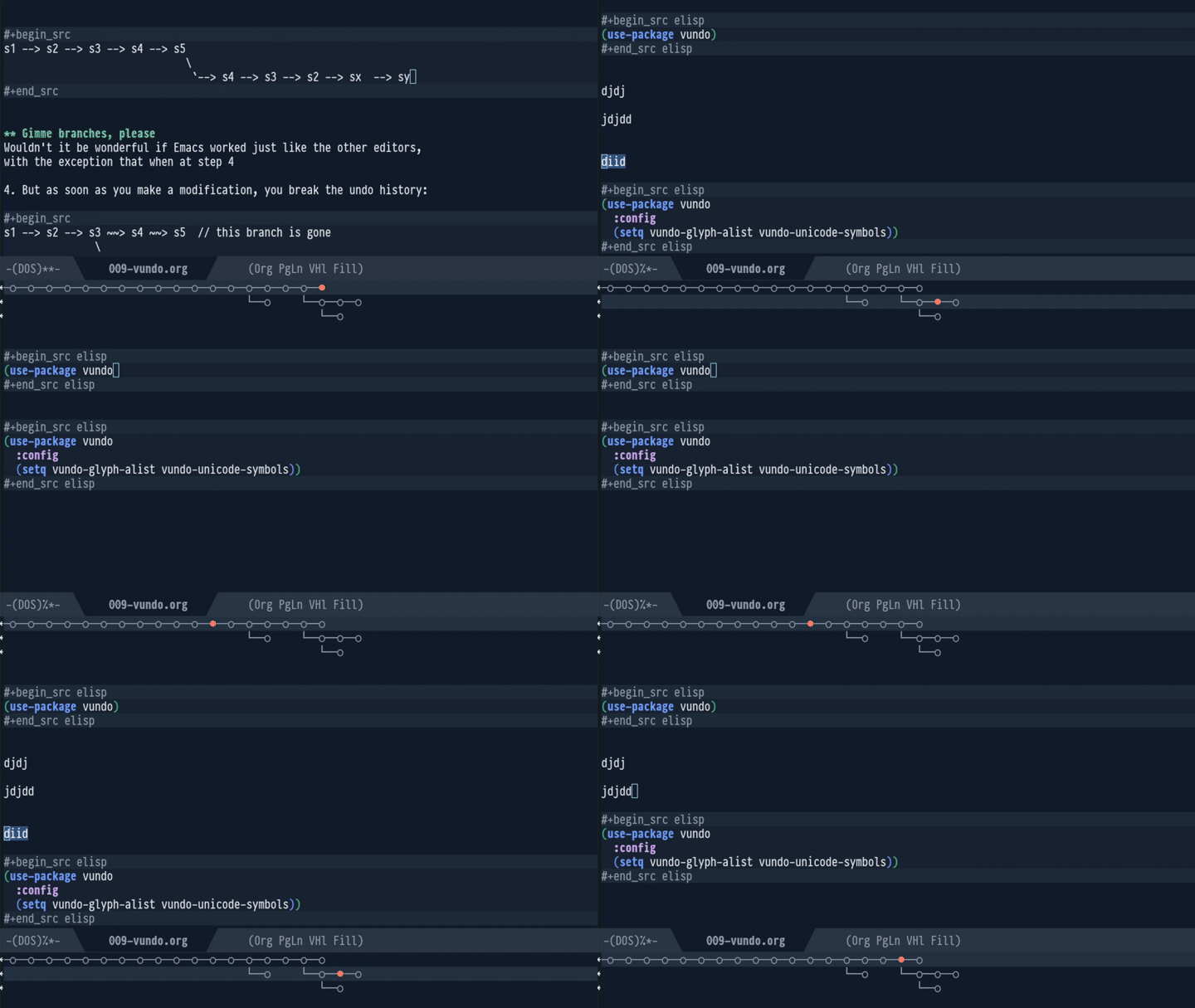
Jujutsu provides similar features with the subcommands of jj op.
Back to Grade School!
Imagine this (admittedly contrived) situation:
○ S s/hola/salut/g -> salut world S = H + (S − H)
○ H s/hello/hola/g -> hola world H = B + (H − B)
○ B hello world
Revert H with jj revert H. This applies - (H - B) = (B - H) to
S:
× P' s/hola/hello/g P' = S + (B - H)
○ S s/hola/salut/g -> salut world S = H + (S − H)
○ H s/hello/hola/g -> hola world H = B + (H − B)
○ B hello world
The natural basis for (B - H) would be H, but it landed on
S. Wrong base: conflict.
Resolve it by rebasing P' back to H:
jj rebase -r P' -d H
○ P' s/hola/hello/g -> hello world P' = H + (B − H) = B
│ ○ S s/hola/salut/g -> salut world S = H + (S − H)
├─╯
○ H s/hello/hola/g -> hola world H = B + (H − B)
○ B hello world
H + (B − H) algebraically simplifies to B.
Conflict gone. No file edits needed. Magic!
Resolving by Abandoning
Alternatively, just jj abandon S:
jj abandon S
○ P' s/hola/hello/g -> hello world P' = H + (B − H) = B
○ H s/hello/hola/g -> hola world H = B + (H − B)
○ B hello world
Same cancellation.
A conflict is really just a diff parked on the wrong base. Moving it where algebra simplifies it makes the conflict vanish.
Quick Start
Important
This chapter is a quick demo of Jujutsu. Skip it if you like: we’ll cover the same ground in the rest of chapters.
Setup
Install Jujutsu. Then, clone the sample repository:
jj git clone https://codeberg.org/arialdo/jj-quick-start.git
cd jj-quick-start
Track all the remote branches:
jj bookmark track '*'
Git Compatible
This is an ordinary Git repo. You can mix Jujutsu’s and Git’s commands:
$ git log --oneline --graph --all
* f3d91ac
* 8dda056 (HEAD)
| * f0218b5
| * fa832fc (origin/store, store) Add `done` command
| * c495748 Store tasks in ~/.taskr.json
|/
| * beea00e (origin/dev, dev) WIP: parse --due dates
| * 6b0b88b Add LICENSE
| * 403d415 Sort tasks by priority
| * b6107c0 debug: dump args to stderr
| * b58bf2f Add serach by tag
| * 068609d Add --priority flag
|/
* 06acab9 (origin/main, main) taskr app
The project is a short todo list in Python. We don’t care what it does. We will mainly focus on the shape of its history.
jj log
Log the history tree with Jujutsu:
jj log
I prefer a more compact template:
jj log -T builtin_log_oneline
Bullet shapes have the following meaning:
| Symbol | Meaning |
|---|---|
○ | Ordinary commits. Consider them editable. |
◆ | Immutable commits that belong to the remote trunk. Git lets you play with them, then it will complain, too late, rejecting your next push. Jujutsu stops you beforehand. |
@ | Your working copy. |
Commits have 2 identifiers:
- One on the right, such as
fa832fce.
This is the ordinary SHA1. Rebase or amend a commit, the SHA-1 will change. - One on the left, such as
spkmxmnw.
This is the Change ID. This identity stays the same no matter the operations you perform.
Notice how Jujutsu highlights the few characters that suffice to unambiguously reference a commit.
Commit
@ is both your working copy and a real commit. When you edit files,
you also modify the commit itself. Editing the repository directly
might sound scary, but don’t worry: it’s a feature, not a bug. You
will learn in The Squash
Workflow and Dispatching Edits
from Megamerges how to leverage this
super-power.
One surprising consequence: in Jujutsu, you typically commit before
you code. Here’s how it works.
Describe beforehand your work:
jj describe -m "docs: prove I have feelings"
Create a new empty commit:
jj new
Log all current commit’s ancestors:
jj log -r ::@

Do you see the 2 empty commits on the top? Think of them like the
working copy and the index, in Git.
Now, code:
$ echo "Written with ❤️" >> README.md
$ jj st
Working copy changes:
M README.md
Working copy (@) : qywvxquo f338a3de (no description set)
Parent commit (@-): plxwmqmu c9ec1ea2 (empty) docs: prove I have feelings
As you see, your changes are already part of the commit. Jujutsu has
no equivalent to git add.
Finish the session by sending your changes 1 commit back, where they
belong:
jj squash
Good, your change landed in nm and you are now in a fresh, empty
commit.
A Typo In an Old Commit Description
Look at this commit:
See the typo?. Before, you have used jj description (desc for
short) to describe the current commit. You can use the same command
with past commits too:
$ jj desc -r w -m "Add search by tag"
Rebased 4 descendant commits
Working copy (@) now at: ovxurmlk 88f2c0d6 (no description set)
Fixed. Notice the message:
Rebased 4 descendant commits
As you manipulate commits, Jujutsu performs the needed rebases on the
fly. Basically, you can treat all the commits as mutable, no matter where they are.
Notice how the SHA-1 values changed, while the Change IDs are still
the same.
Rebase
Say you want to rebase dev on top of store:
jj rebase -b dev -o store
Jujutsu replies with
Rebased 6 commits to destination
But then it adds:
New conflicts appeared in 5 commits:
nttpknso 219791e0 dev* | (conflict) WIP: parse --due dates
lwzqwkyz 83c89c2d (conflict) Add LICENSE
unztuwko ee801a30 (conflict) Sort tasks by priority
kvnpnqnw ed1c4a78 (conflict) debug: dump args to stderr
wywpzopw 2ffce574 (conflict) Add search by tag
Gosh, conflicts!
Two things to notice:
- First, you rebased a branch while you were somewhere else. Git wouldn’t let you do that.
- Second, conflict didn’t stop Jujutsu: it completed the rebase nevertheless, and now it shows where the conflicts are. You can keep working and resolve the conflicts when you prefer. You’ll find plenty of information and tricks in the chapter Conflicts.
Should you want to undo the rebase, you could run jj undo: it’s a
passe-partout command that undoes whatever operation you run, no
exceptions. Give it a try:
jj undo
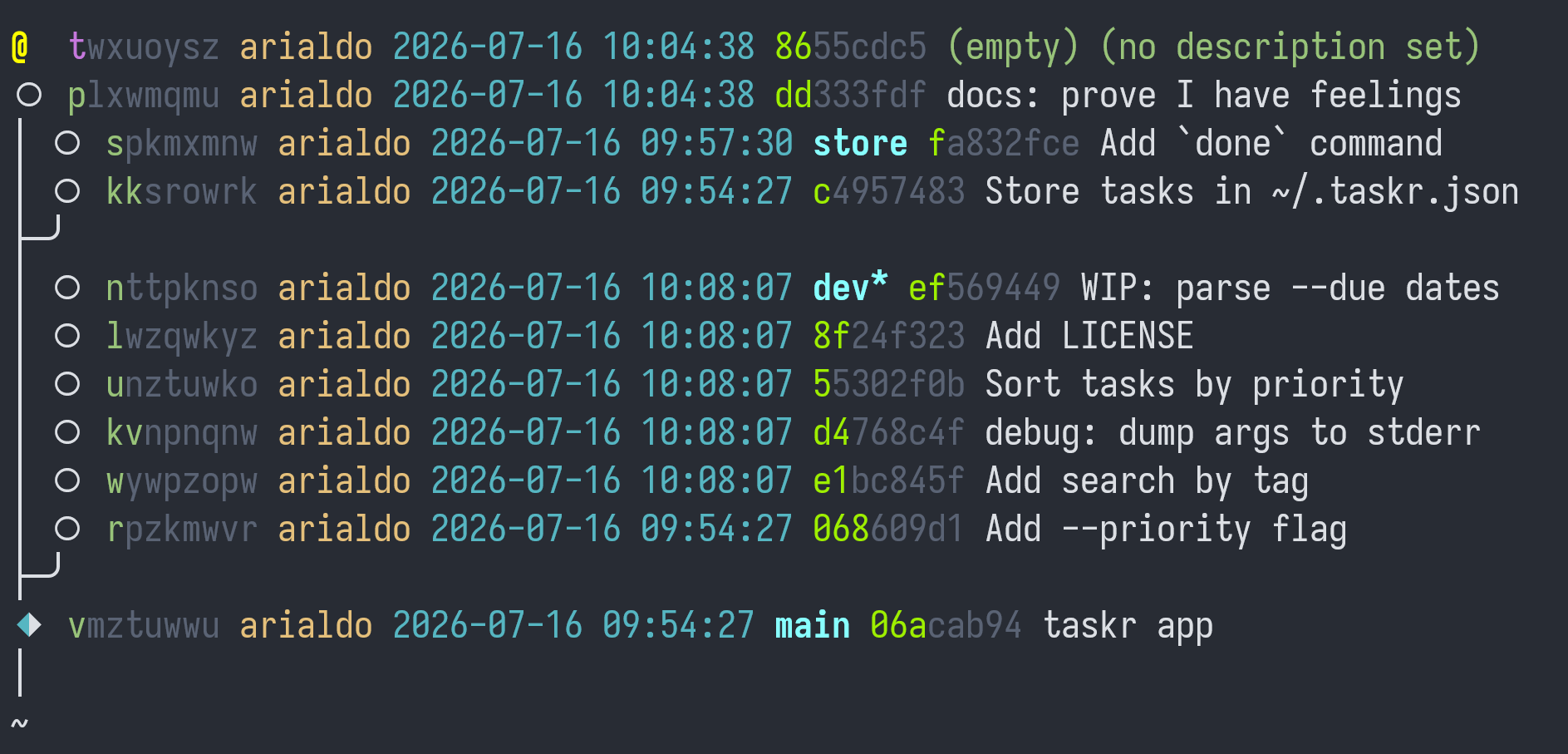
Voilà, the rebase is gone, and so are the conflicts. You could keep
running jj undo until you are back to the very moment you cloned the
repository.
Now try to undo the undo:
jj redo
You are back to the future, to the conflicted state. You can go back
and forth in the operation history with jj undo, jj redo and other
powerful sub-commands under jj op. Think of them as Git’s reflog on
steroids. You will read about them in It’s History All The Way
Down.
Rebase a Conflicted Branch
On second thought, you wanted to rebase store on top of dev, not
the other way around. So, you need to move the commits from kk to
s on top of n / dev:
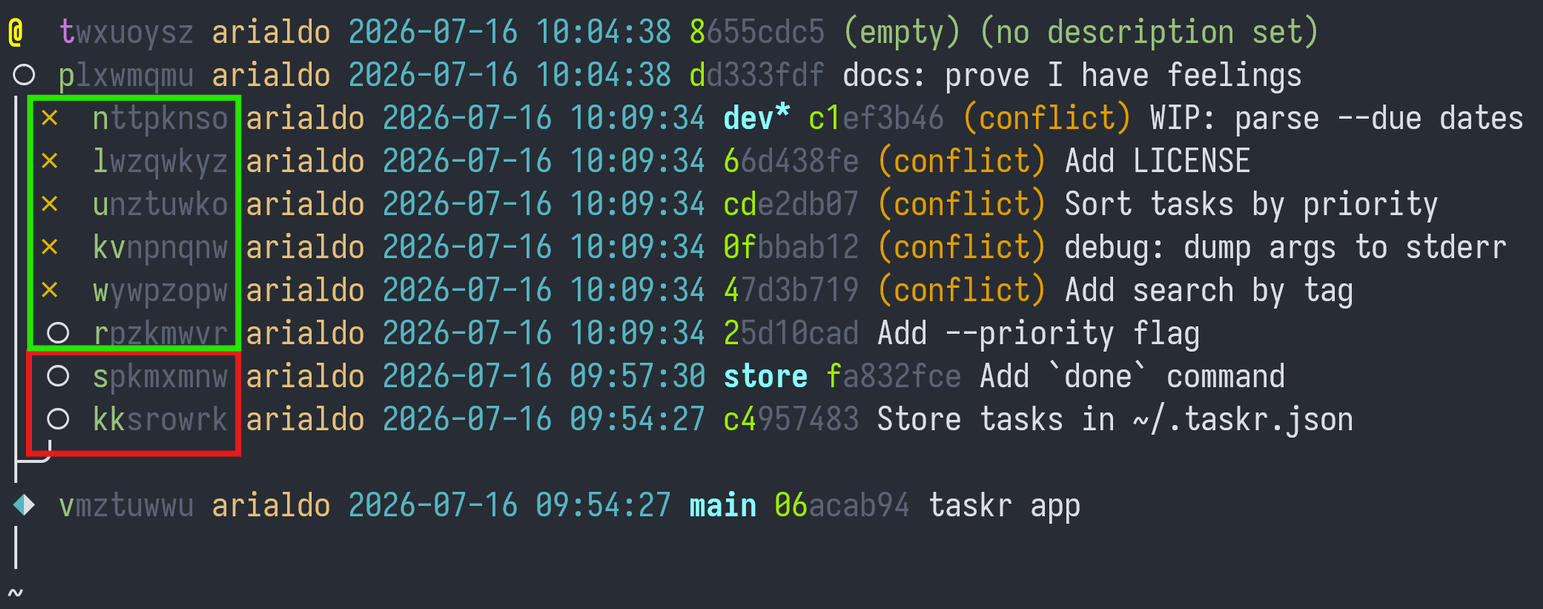
Run:
jj rebase -r 'kk::s' -o dev
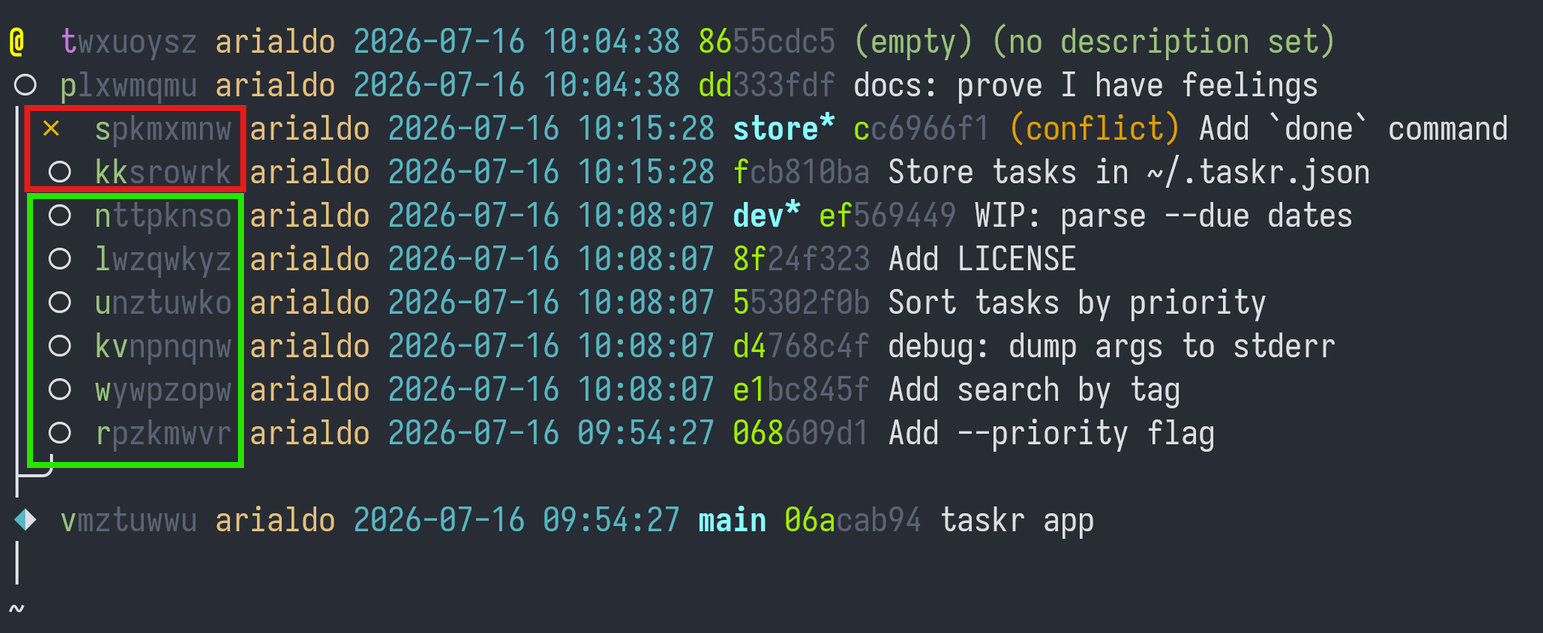
Much better, only 1 conflict.
Time to resolve the conflict. You move on top of the conflicted commit
s:
jj new s
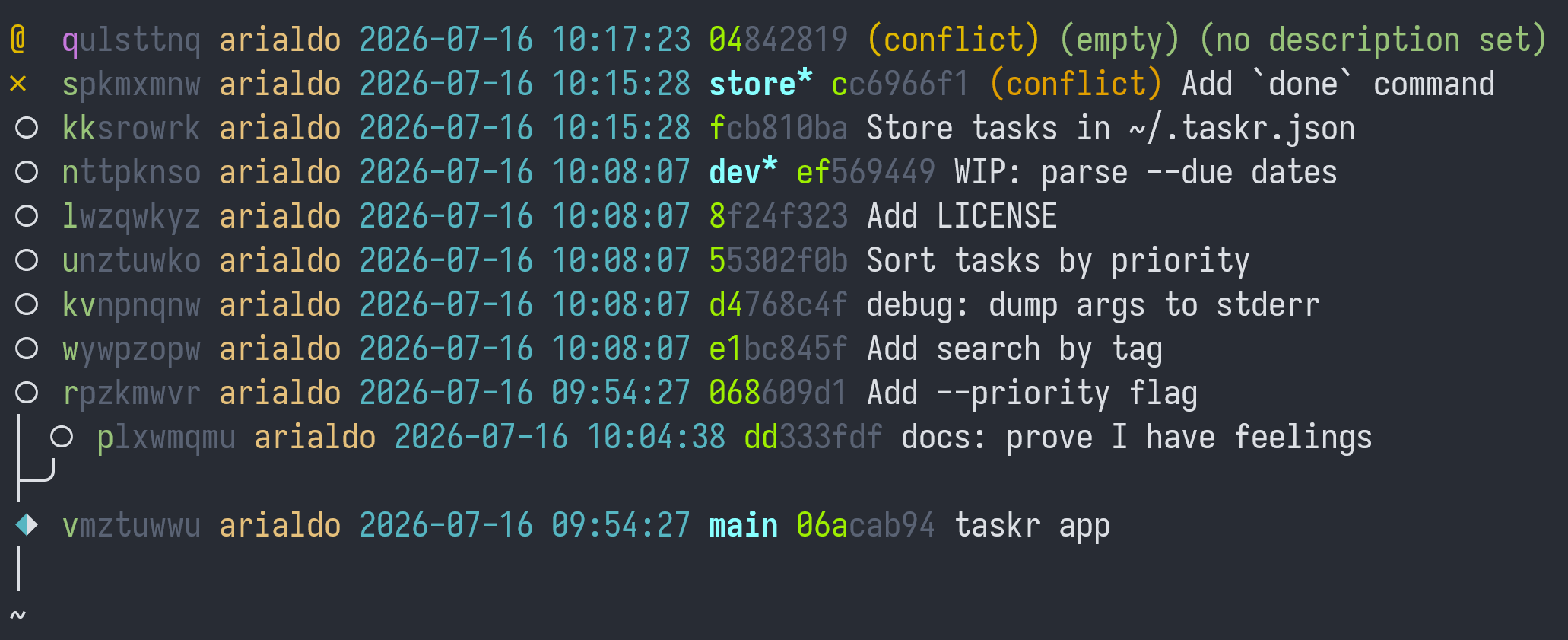
You’d better fix it later, though: your boss is yelling at you about some SUPER URGENT tasks.
Amending a Commit From a Distance
“RED ALERT!”, “your boss panics “there’s a bug! DROP EVERYTHING, you
MUST fix it NOW!”
It’s about this code:
if len(args) >= 2 and args[0] == "--priority":
priority = int(args[1])
args = args[2:]
Nothing alarming, you think: you get an exception if args[1] isn’t a
number. You just need to add error handling around it. Which commit
introduced the expression int(args[1])?
$ jj log -r 'diff_lines(substring:"int(args[1])")'
○ rpzkmwvr arialdo 2026-07-16 09:54:27 068609d1 Add --priority flag
│
~
Here’s the culprit: the commit rpzkmwvr.
diff_lines(substring:"int(args[1])") is an example of a Revset: an
expression in a powerful (yet intuitive) purely functional language
for selecting commits. In Git, revision selection is a pile of
non-composable fragments (such as HEAD~3, main..feature,
--author=alice, -S"int(args[1])") each available only where it was
bolted on (e.g., git log takes -S, git rebase doesn’t). In
Jujutsu it’s one single, consistent language that every command
shares.
Anyway, the bug hasn’t been introduced by your current commit, but 5 commits down the stack. No problem, you’ll fix it from a distance.
Wait, what? You are in a conflicted commit! Can you really code while
there are pending conflicts? Yes, you can: after all, the bug fix is
about r, a conflict-free commit.
So, amend cmd_add in commands.py from your current commit:
def cmd_add(args):
priority = 3
if len(args) >= 2 and args[0] == "--priority":
try:
priority = int(args[1])
except ValueError:
print("priority must be a number", file=sys.stderr)
return 2
args = args[2:]
due = None
...
then send it five commits down:
$ jj squash --into r
Rebased 7 descendant commits
Cool, your fix landed in r. Seven commits, including your working
copy, rebased on top of it. Boss (slightly) happier.
Jujutsu reminds you that you still have conflicts in s:
Warning: There are unresolved conflicts at these paths:
taskr.py 2-sided conflict
Amending The Last Commit
Your boss (who else?) pushes for dev to be completed. The code in
n is unfinished:
jj show dev
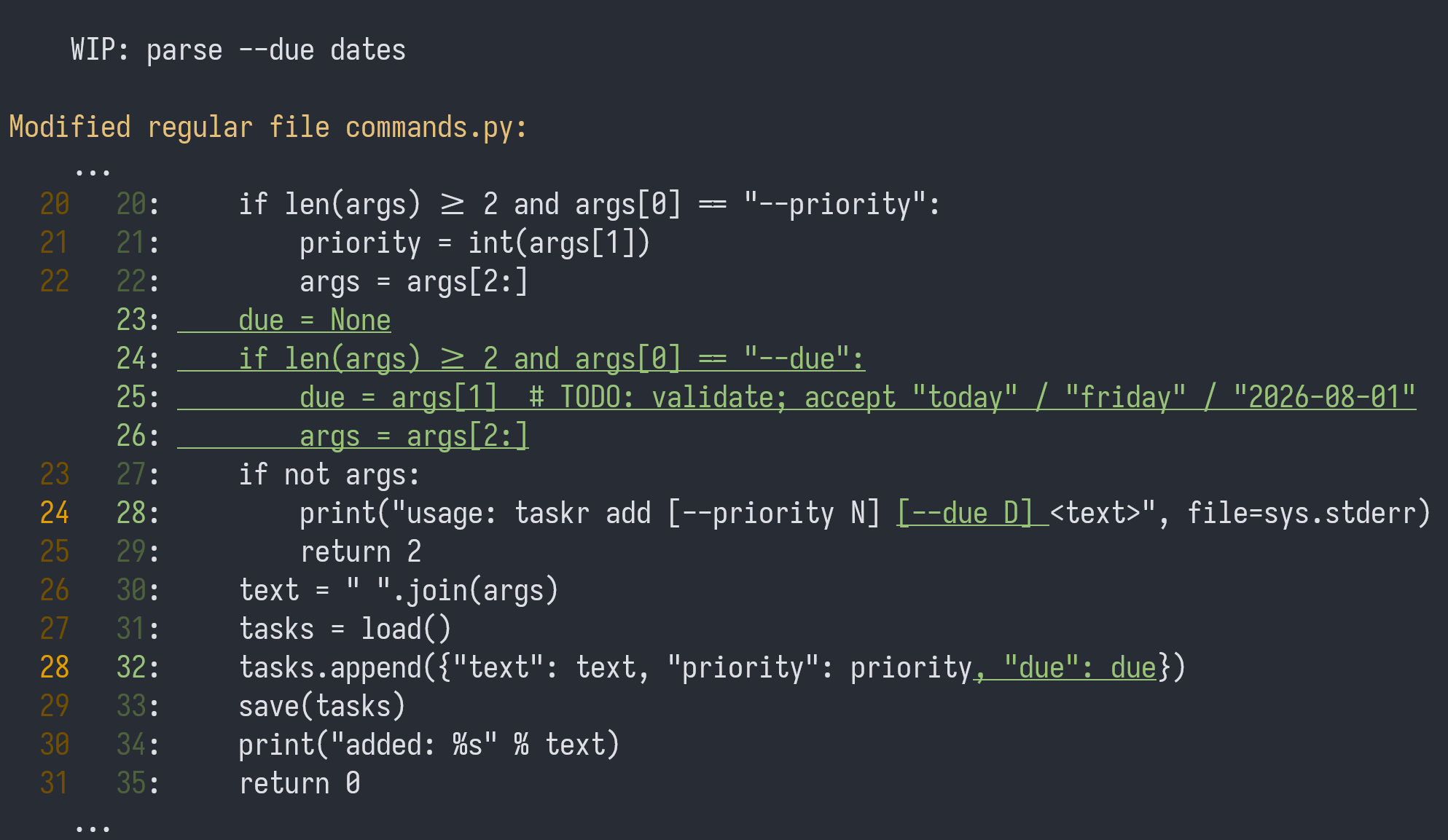
It parses --due but never displays it, which is probably why it
still says WIP.
“FINISH IT!”, boss commands. Yes, Sir!
The commit dev lays right in the middle of a chain of commits, but
that’s not a problem, it’s always the same pattern:
$ jj new TARGET # create a working staging area.
$ emacs FILE # write code (choose your editor wisely, no pressure)
$ jj diff # review what you did.
$ jj squash # incorporate in the commit.
So:
jj new dev
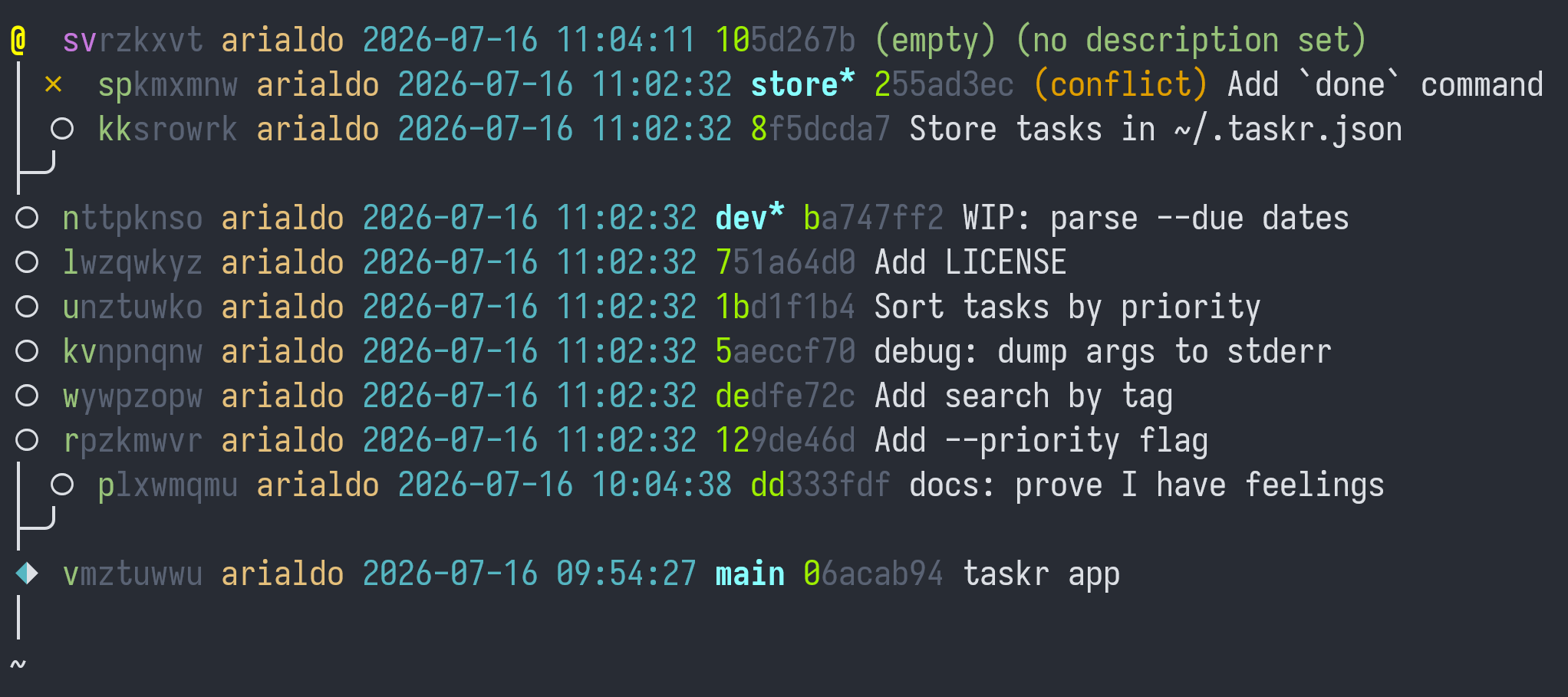
Change cmd_list in commands.py to:
def cmd_list(args):
tasks = load()
if not tasks:
print("no tasks")
return 0
ordered = sorted(tasks, key=lambda t: t.get("priority", 3))
for n, task in enumerate(ordered, 1):
suffix = " (due %s)" % task["due"] if task.get("due") else ""
print("%2d. [%d] %s%s" % (n, task.get("priority", 3), task["text"], suffix))
return 0
Review your change before amending the commit:
$ jj diff
Modified regular file commands.py:
...
47 47: return 0
48 48: ordered = sorted(tasks, key=lambda t: t.get("priority", 3))
49 49: for n, task in enumerate(ordered, 1):
50 50: suffix = " (due %s)" % task["due"] if task.get("due") else ""
50 51: print("%2d. [%d] %s%s" % (n, task.get("priority", 3), task["text"], suffix))
51 52: return 0
52 53:
53 54:
...
Fine. Squash your work to n, and amend the description:
$ jj squash -m "Parse --due dates"
Working copy (@) now at: ovxurmlk 3e81b7a4 (empty) (no description set)
Parent commit (@-) : qpvuwxyt 2c5f9e13 Parse --due dates
You’ll read about this workflow in Don’t Edit.
Throwing a Commit Away
You are ready to resolve the conflict when you notice the commit
kv:
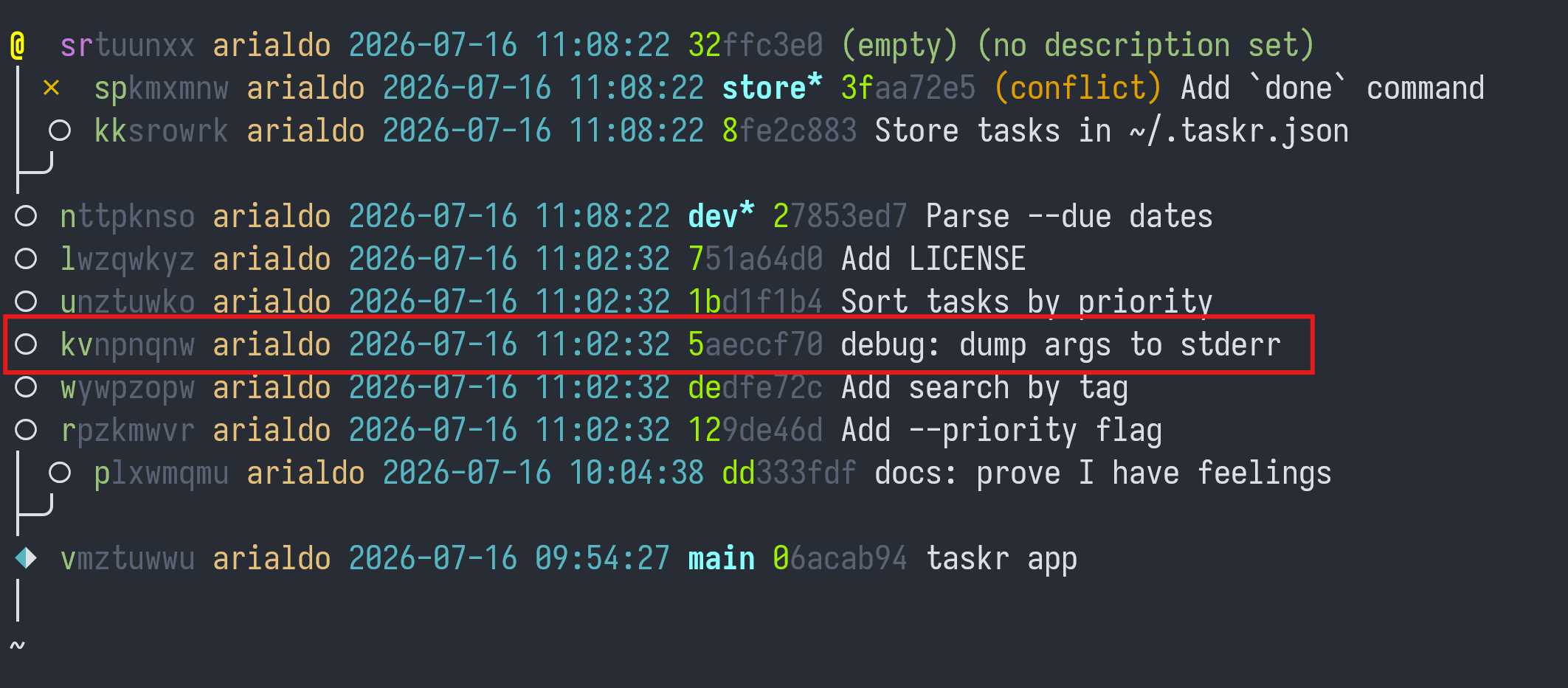
What is it about?
jj show kv
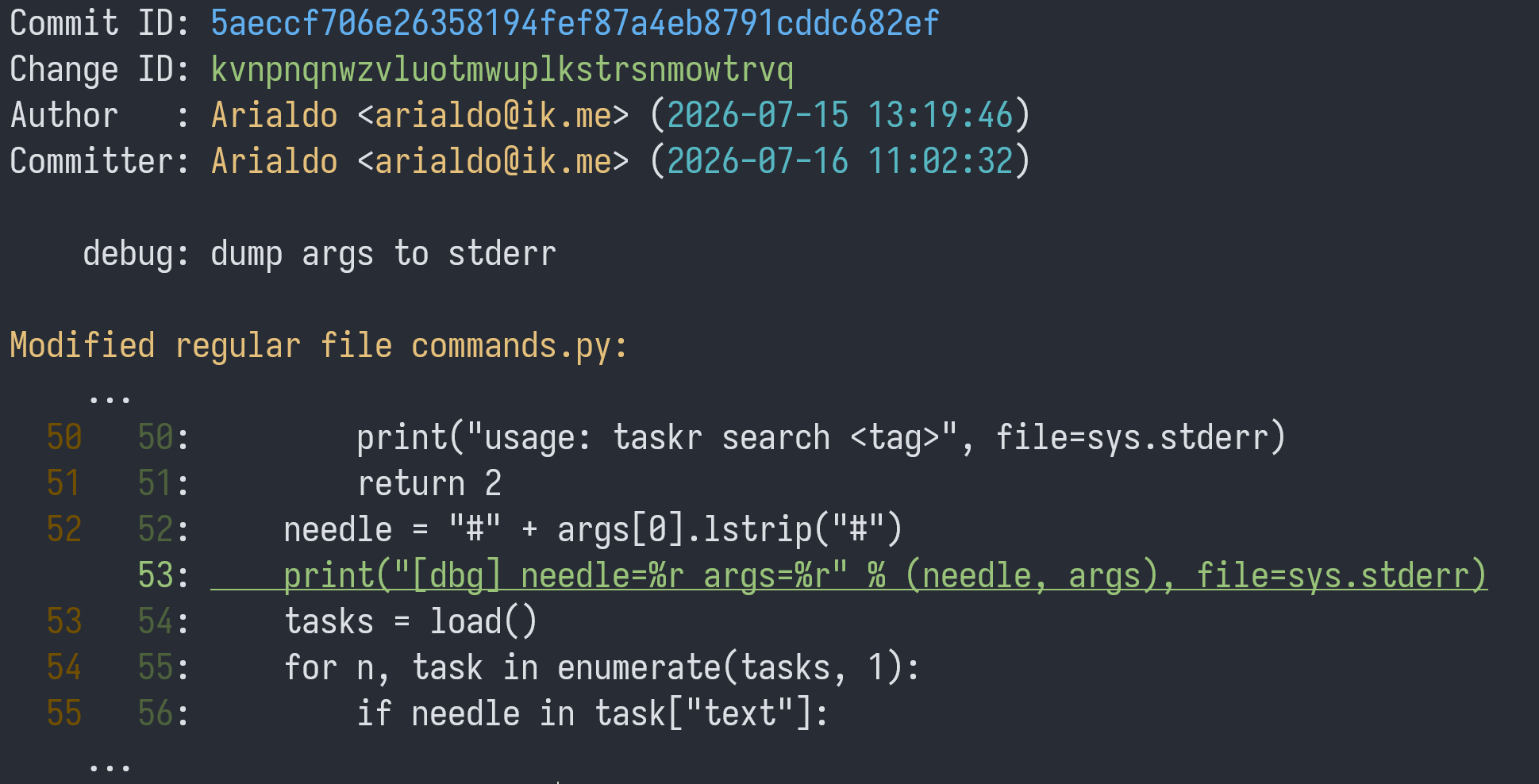
Ha! A stray troubleshooting print. The whole commit can be completely abandoned:
jj abandon kv
Looks like your boss isn’t the only reason you’ve been putting off that conflict resolution, eh?
Resolve The Conflict
Where was the conflict, by the way?
$ jj log -r 'conflicts()'
× spkmxmnw arialdo 2026-07-16 11:12:20 store* 07aa62de (conflict) Add `done` command
│
~
Let’s go there:
$ jj new sp
$ jj resolve --list
taskr.py 2-sided conflict
$ jj resolve --tool meld
Both sides want their command in the list. Both should succeed, so you can replace the conflict with:
COMMANDS = ["add", "done", "list", "search"]
jj status will tell you:
Hint: Conflict in parent commit has been resolved in working copy
Good, no more conflicts.
jj squash
All clear!
Moving License
Look at this commit:
It seems that the license file was added too late, only when somebody
noticed it was missing. Move it where it belongs, before commit
v:
jj rebase -r l --before v
Uh oh! It’s time for Jujutsu to whine:
Error: Commit 06acab9454ba is immutable
Git would let you rebase and surprise you with a: “Hello, rejected push!” later. Jujutsu saves you before the damage is done! Good boy!
If you really insist, you can always use --ignore-immutable:
jj rebase -r l --before v --ignore-immutable
Jujutsu makes it clear that the local main and the remote main
diverged.
And Git?
git log --oneline --graph
* 5fbe696 (HEAD, store) Add `done` command
* 7123075 Store tasks in ~/.taskr.json
* 83e3f8f (dev) Parse --due dates
* 5691e5a Sort tasks by priority
* 038d354 Add search by tag
* cbc233b Add --priority flag
* 8679eed (main) taskr app
* 18ca92f Add LICENSE
It’s still a 100% Git compatible repository. Your teammates won’t even notice that you are playing with your brand new toy.
What’s not to love?